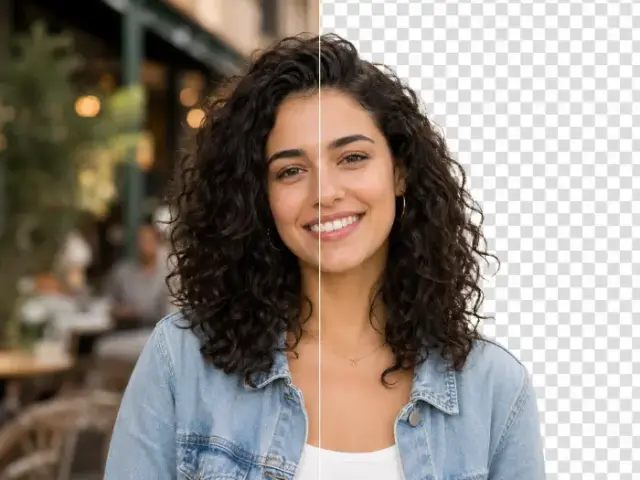
Watermark Remover.Clear the overlay, keep the scene.
Use the Artaivo Watermark Remover when a visible text mark, logo, date stamp, or proof overlay covers an image you are authorized to edit. Upload one source and the Watermark Remover reconstructs the covered area with an image-editing model while preserving the surrounding composition.
One focused source image
JPG, PNG, or WebP up to 10 MB
Visible overlays and stamps
1 image
Focused Watermark Remover input
10 MB
Maximum source file size
AI Watermark Remover Workspace
Loading available Kie models...
Watermark Remover before and after
See What the Watermark Remover Rebuilds
Drag across the desk image to compare the marked source with the clean reference. A Watermark Remover does not uncover hidden original pixels; it generates a plausible replacement from nearby texture, light, and structure. That distinction matters when you inspect a Watermark Remover result at full size.
Add a JPG, PNG, or WebP up to 10 MB to the Watermark Remover. Start with the clearest available source and confirm that you own the image or have permission to remove its visible mark.
→
02
Match the source format
Choose the aspect ratio that best matches the original frame and select an available resolution. The Watermark Remover already carries a focused instruction, so you do not need to write a prompt.
→
03
Generate, zoom, and verify
Start the Watermark Remover, open the result at 100%, and compare the repaired area with nearby edges, textures, faces, and objects before you download or publish the image.
Three precise removal cases
A Watermark Remover for Stamps, Catalog Marks, and Proofs
Different overlays hide different visual information. These paired examples show where the Watermark Remover must reason about film grain, product contours, fabric, furniture, windows, and other surrounding evidence instead of simply blurring a mark.
BeforeAfter
01 · Date stamp
Remove a date stamp from a personal scan
Use the Watermark Remover on an authorized scan when a camera date crosses a car or landscape. The Watermark Remover should rebuild interrupted edges and retain the photo's grain without leaving a soft patch.
BeforeAfter
02 · Catalog overlay
Clean an owned product photograph
A Watermark Remover can clear an outdated catalog label from a product image you control. The Watermark Remover must preserve the mug, glaze, handle, linen, leaves, and wood grain around the covered pixels.
BeforeAfter
03 · Client proof
Finish an approved client proof
Choose the Watermark Remover after an unmarked proof is approved. A careful Watermark Remover result keeps the fireplace, olive tree, window frames, sofa, and natural light coherent across the former overlay.
Visible marks the tool can target
What This Watermark Remover Is Designed to Remove
The Watermark Remover is built for visible raster overlays inside an image. It is not a metadata scrubber and does not claim to remove invisible provenance systems. Results vary with overlay size, transparency, placement, and the complexity of the scene underneath.
Text watermarks
Use the Watermark Remover for a visible word or phrase placed across a photo you may edit. Large text over faces or intricate geometry needs especially close review.
Logo overlays
The Watermark Remover can reconstruct the area behind a visible logo overlay. It works from context; it does not retrieve the exact hidden source pixels.
Dates and timestamps
A Watermark Remover can target camera dates and timestamp graphics on an authorized scan while attempting to maintain nearby grain, color, and edges.
Proof and catalog marks
Use the Watermark Remover for an outdated proof or catalog label only after rights are cleared. Compare straight lines, repeating textures, and product boundaries afterward.
Watermark Remover quality check
Inspect the Repair, Not Just the Thumbnail
A Watermark Remover result can look clean at card size while hiding invented detail. Keep the source open beside the result and judge the actual repair at 100%. The following Watermark Remover checklist catches the most common visual problems.
Follow interrupted edges
Check outlines that crossed the mark. The Watermark Remover should continue each edge in a believable direction without bends or doubled contours.
Compare repeating texture
Inspect repeating textures. Reject a Watermark Remover output with smears, tiled patterns, or abrupt changes at the repaired boundary.
Protect identity and meaning
Review faces, labels, and records with extra care. A Watermark Remover can alter a meaningful detail even when the image looks polished.
Keep the original file
Download the Watermark Remover result as a new asset and retain the untouched source for comparison, revision, and rights verification.
Responsible Watermark Remover use
Know What the Tool Cannot Promise
Use the Watermark Remover only on images you own, licensed assets that permit modification, or files for which you have explicit authorization. Removing attribution or ownership marks from someone else's work may violate rights, license terms, or local law.
Generated reconstruction is not recovery
The Watermark Remover estimates what belongs under the overlay. For unique text, faces, signatures, or evidence, the repair is not original truth.
Invisible data is outside this workflow
This Watermark Remover targets visible raster marks, not embedded metadata, content credentials, invisible fingerprints, or provenance signals.
Complex coverage may need another pass
A large, opaque, or tiled mark leaves little context for the Watermark Remover. Reject output that changes the subject or important geometry.
Continue the image workflow
Related AI Image Tools
Use the focused Watermark Remover first when the frame is right but a visible overlay is not. Choose another tool when the actual job is background isolation, canvas expansion, or higher resolution.
An AI Watermark Remover is an image-editing tool that targets a visible watermark or overlay and generates replacement pixels from the surrounding visual context. The Watermark Remover produces a plausible reconstruction rather than revealing exact hidden pixels.
How do I remove a watermark from an image?
Upload one authorized JPG, PNG, or WebP image, match the aspect ratio to the source, choose an available resolution, sign in, and start the Watermark Remover. Compare the Watermark Remover result with the source at 100% before downloading it.
Can the Watermark Remover remove text and logos?
The Watermark Remover is designed to target visible text, logo overlays, proof labels, and date stamps. Success depends on mark size, opacity, placement, and scene complexity, so detailed review is always necessary.
Does the Watermark Remover recover the original image?
No. A Watermark Remover estimates missing content with generative image editing. It cannot recover exact pixels that are fully covered, so do not treat a Watermark Remover reconstruction as ground truth or documentary evidence.
Which image formats does the Watermark Remover accept?
The Watermark Remover workspace accepts one JPG, PNG, or WebP image up to 10 MB. Use the clearest source you have because compression, blur, and tiny dimensions leave less visual evidence for reconstruction.
Can I use the Watermark Remover on any image?
Use the Watermark Remover only when you own the image, the license allows modification, or the rights holder has authorized removal. Do not use a Watermark Remover to strip ownership or attribution from work you do not control.
Why should I inspect a Watermark Remover result?
The Watermark Remover may invent texture, bend an edge, alter a face, or change a small meaningful object under the overlay. Inspect repaired boundaries, repeated patterns, text, faces, and geometry at full size before publishing.
Start with one authorized source
Put the Watermark Remover on the Image
Upload one image, keep the frame matched to the source, and let the Watermark Remover reconstruct the visible overlay area. Then zoom in, compare the result, and keep the untouched original beside your cleaned export.