STEP 01
Upload the visual anchor
Give Image to Video AI a clear JPG, PNG, or WebP. The source frame establishes the subject, lighting, palette, camera angle, and opening composition.
Still frame / moving shot
Image to Video AI turns one composed frame into a directed clip. Upload the picture that must stay recognizable, choose how the camera or subject should move, then adjust only the details that matter.
Image to Video AI is built for portraits, product shots, illustrations, campaign art, and cinematic keyframes—without asking you to invent a long prompt before you begin.
Motion console
Start with your real visual anchor. Image to Video AI reads the uploaded composition, applies a selected movement recipe, and sends your choices to the compatible model you select below.
Image to Video AI · connected video studio
Keep Image to Video AI as your current workflow, then move into generation, animation, motion transfer, restyling, extension, or restoration without leaving Artaivo.
A shorter path to motion
Image to Video AI removes blank-page prompting but keeps the controls that change the result.
Give Image to Video AI a clear JPG, PNG, or WebP. The source frame establishes the subject, lighting, palette, camera angle, and opening composition.
Tell Image to Video AI whether the camera pushes, orbits, tracks, or stays locked while the subject and environment move.
Select the Image to Video AI model and open its parameters for duration, aspect ratio, resolution, sound, or quality before spending credits.
Image-first direction
An AI image to video generator already receives the subject and composition from the upload. The useful text is a motion brief—not a second description of everything visible.
Image to Video AI responds better when the subject performs one coherent action instead of a chain of unrelated events.
Use push in, pull out, pan, tilt, orbit, track, or locked camera so Image to Video AI has a clear spatial instruction.
Words such as slow, restrained, energetic, or dreamlike help Image to Video AI time the same movement in different ways.
Ask Image to Video AI to preserve facial identity, product geometry, readable logos, or illustration style when those details must remain stable.
Where a starting frame matters
The same animation workflow can support social clips, campaign tests, product moments, mood shots, and illustrated stories when each source image is prepared for the intended motion.
Motion case 01
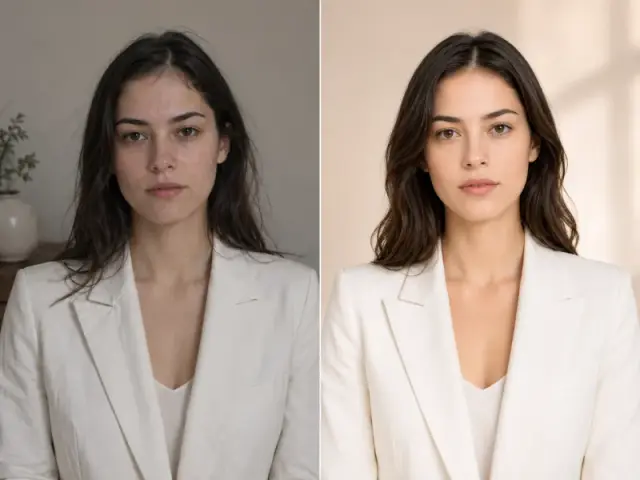
Use Image to Video AI for subtle expression, hair, fabric, and camera movement while keeping a recognizable face anchored to the source portrait.
Motion case 02
Turn a composed vehicle frame into a rolling lifestyle shot. Image to Video AI can add wheel movement, road travel, and sunset reflections while preserving the car design.
Motion case 03
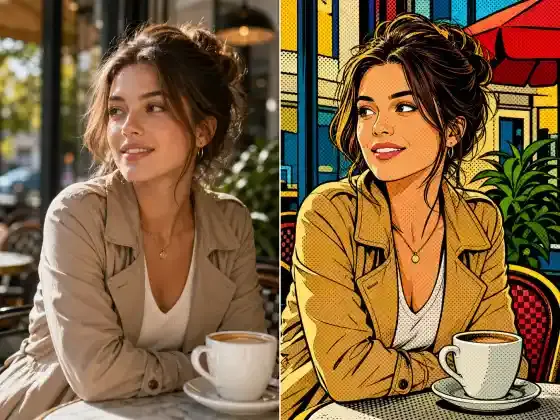
Animate an illustration with controlled pose, atmospheric, or parallax movement. Image to Video AI should preserve the original drawing language across the clip.
Motion case 04
Use a storyboard frame or generated concept still as shot zero. Image to Video AI then explores motion without losing the approved framing direction.
Frame-to-frame inspection
Quality control
Image animation quality is temporal. Review what happens between the first and last frame, especially where faces, hands, text, products, and background lines must remain consistent.
Check whether Image to Video AI keeps facial structure, body proportions, product shape, and major scene lines consistent while motion unfolds.
Camera movement asks Image to Video AI to reveal unseen space. Look for stretching, duplicated objects, unstable borders, or backgrounds that slide unnaturally.
A close portrait needs smaller motion than a wide action frame. Image to Video AI performs best when the requested energy fits the visual evidence.
Keep the source frame, then change only the preset, pace, or model. This makes Image to Video AI comparisons useful instead of random.
Model-aware generation
Compatible engines expose different controls and credit costs. The model menu stays available because a portrait micro-moment, product orbit, and first-to-last-frame transition do not always need the same engine.
Image to Video AI model labels summarize speed, quality, resolution, audio, and frame support so you can create a focused shortlist.
Image to Video AI parameters are model-specific. Confirm aspect ratio, duration, quality, audio, and estimated credits before submission.
Some Image to Video AI models accept two frames for a directed transition; others animate one reference. Upload fields update with the selected model.
Adjacent workflows
Image to Video AI belongs beside these tasks, but each route answers a different search and creation intent.
Image to Video AI is a generative workflow that uses an uploaded still as the visual starting point for a short video. The image establishes composition and appearance; a motion direction tells the model what should move.
No. Choose a ready-made motion preset, then edit only the action, camera move, pace, or preservation rule you need. Image to Video AI already receives most visual information from the source frame.
Use a clear, high-quality image with a readable subject, coherent anatomy, stable lighting, and enough surrounding space for the intended movement. Image to Video AI cannot reliably recover every detail hidden outside the frame.
Yes. Image to Video AI can add restrained portrait motion or a commercial camera move. Request identity or geometry preservation when faces, packaging, logos, or proportions must stay consistent.
Models vary in speed, fidelity, audio, duration, resolution, credit cost, and first/last-frame support. Image to Video AI keeps the compatible model menu available so the engine can match the shot.
When the selected model supports it, choose a vertical aspect ratio in Model parameters. A vertically composed source image usually gives Image to Video AI better evidence than forcing a wide frame into a portrait layout.
The source image anchors generation, but exact first-frame behavior depends on the selected model and mode. Check the model description and upload labels; Image to Video AI may treat an image as a reference or as a defined first frame.
Reduce the amount of motion, simplify the action, choose a steadier camera preset, or try another compatible model. Image to Video AI is easier to compare when you keep the source image fixed and change one variable at a time.
Your frame is already the brief
Upload the strongest opening frame, choose the closest motion starter, and let Image to Video AI turn visual intent into a controlled clip.