
01
AI Video Upscaler · 01 / Scale
Double the frame dimensions
The current Topaz model produces a 2× upscale. AI Video Upscaler exposes that real factor clearly rather than using “4K” as a generic marketing promise.
Low resolution → cleaner 2× output
Increase video resolution without asking the model to redesign your footage. AI Video Upscaler analyzes frames, reconstructs edges and texture, and produces a 2× output while the source action, composition, and visual identity stay the priority.
Upload an external source video and generate with Topaz Video Upscale. The workflow is intentionally prompt-free because quality enhancement is not a creative restyling request—and this page states the real 2× capability instead of promising unsupported 4K output.
Resolution enhancement workspace
This AI Video Upscaler function starts with the file, not a prompt. Upload the source video, confirm the 2× upscale factor, generate, and compare texture, edges, motion stability, and compression artifacts in the result.
AI Video Upscaler · connected video studio
Keep AI Video Upscaler as your current workflow, then move into generation, animation, motion transfer, restyling, extension, or restoration without leaving Artaivo.
What this search really means
AI Video Upscaler searches are transactional: users want to upload low-resolution footage, increase output dimensions, reduce visible artifacts, compare the result, and download. A prompt would add friction without helping that core job.
AI Video Upscaler · 01 / Scale
The current Topaz model produces a 2× upscale. AI Video Upscaler exposes that real factor clearly rather than using “4K” as a generic marketing promise.
AI Video Upscaler · 02 / Reconstruct
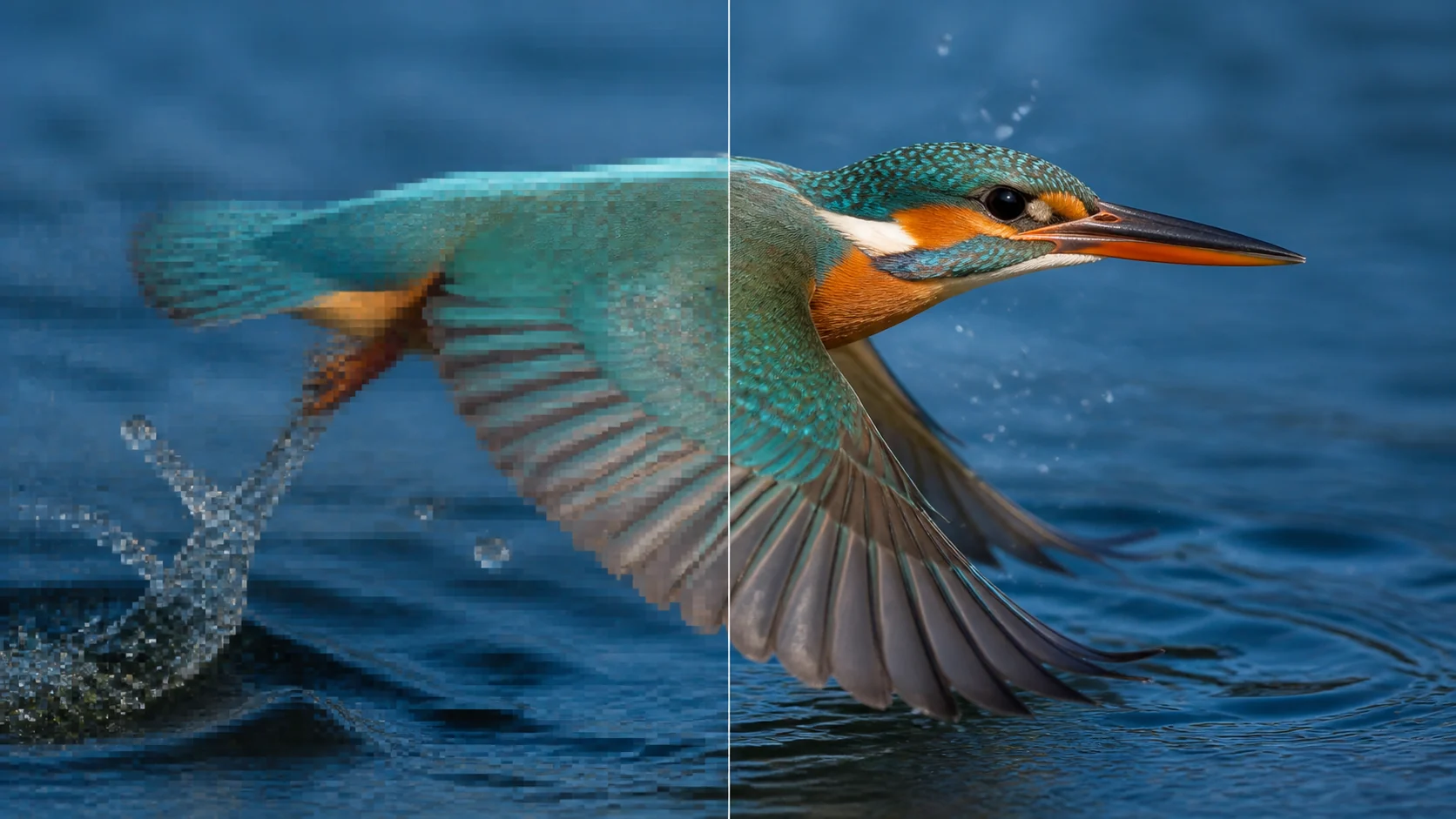
Super-resolution can rebuild plausible texture around faces, feathers, typography, product edges, and landscape detail while reducing the blocky look of enlargement.
AI Video Upscaler · 03 / Stabilize
A single sharp frame is not enough. A useful AI Video Upscaler result keeps edge treatment and reconstructed texture stable from one moving frame to the next.
How AI Video Upscaler works
AI Video Upscaler removes decisions that do not belong to resolution enhancement. There are no style cards or mandatory prompts—only the source, the supported factor, and the output review.
AI Video Upscaler · 01
Start from the least compressed master you have. A clean 720p source usually contains more recoverable evidence than a copy repeatedly downloaded from social platforms.
AI Video Upscaler · 02
The Topaz workflow doubles the input frame dimensions. Processing cost depends on the model service, and no prompt is required to begin reconstruction.
AI Video Upscaler · 03
Inspect moving edges, facial features, fine patterns, gradients, and compression noise. Download only after checking several moments, not just the poster frame.
Enhancement examples
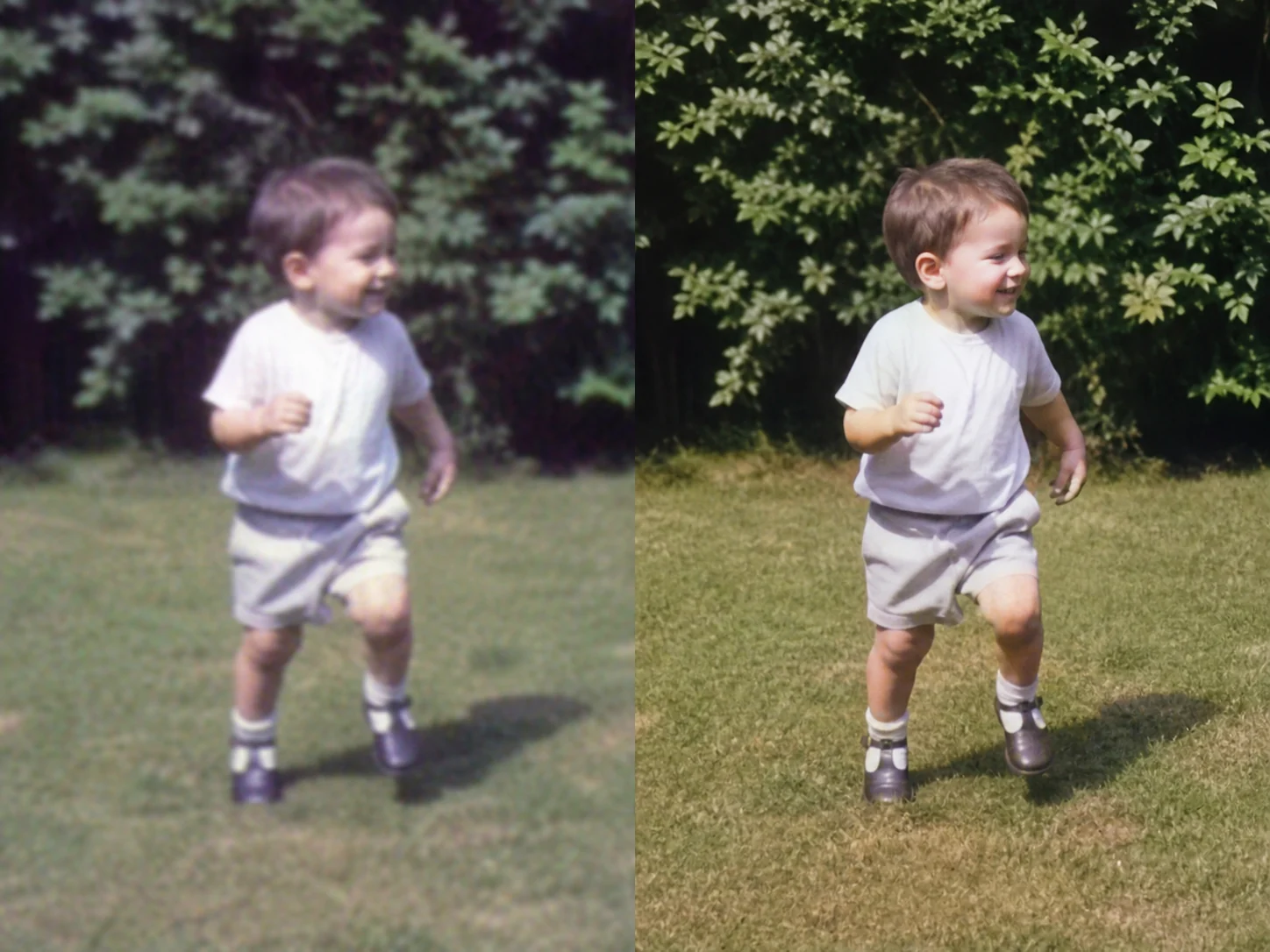
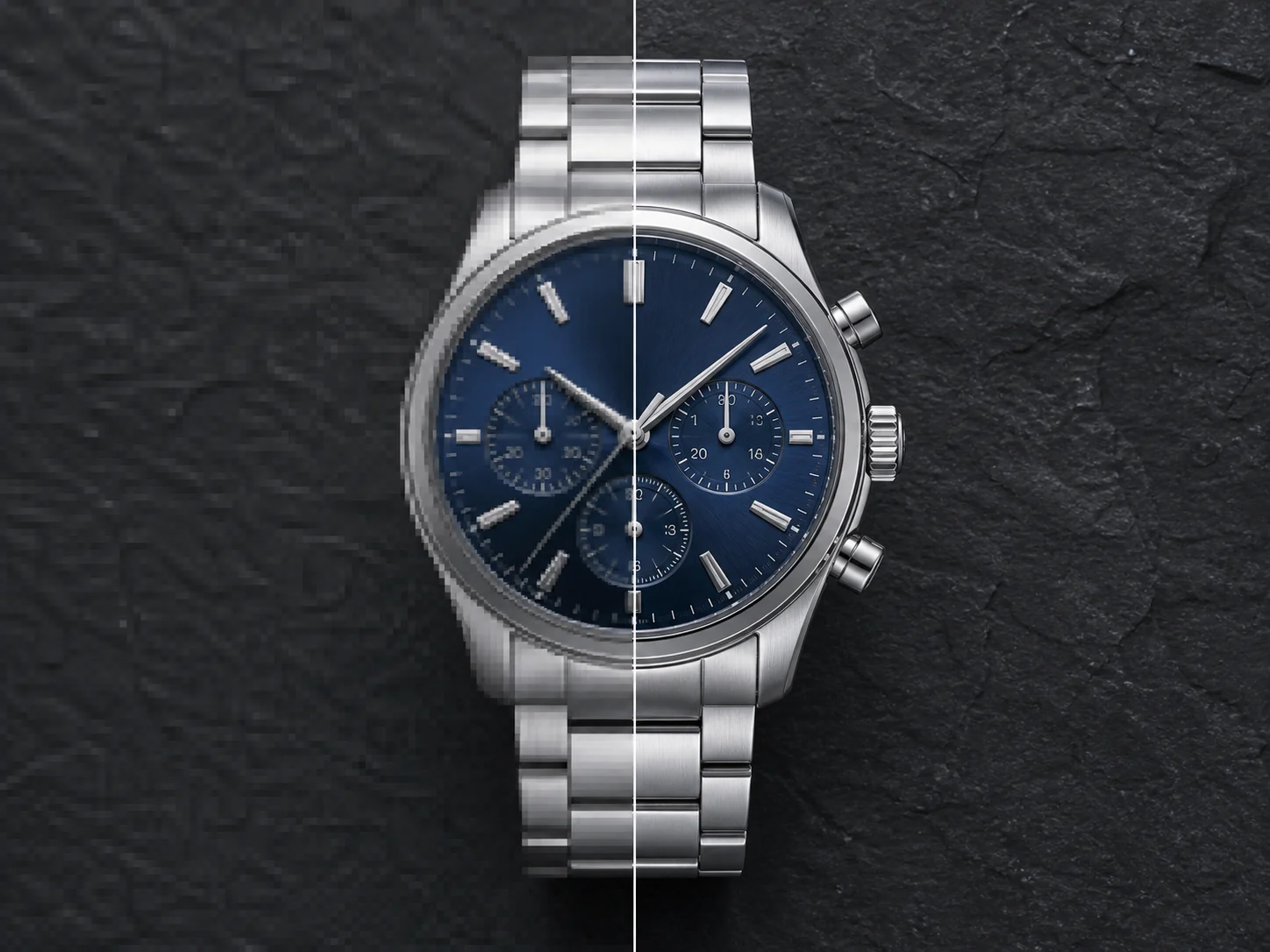
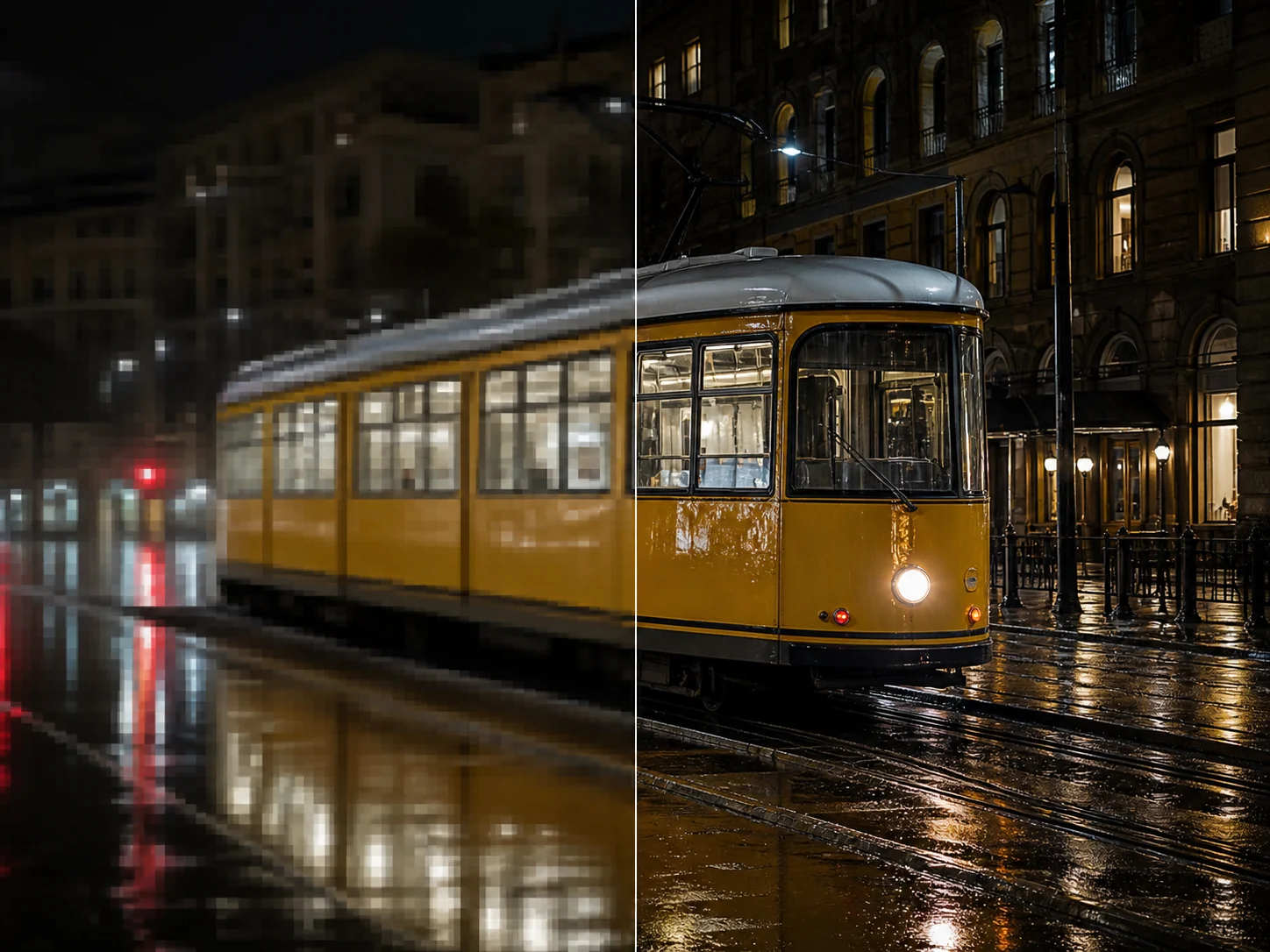
AI Video Upscaler evaluation needs exact alignment. These examples compare the same subject, pose, and frame so sharper reconstruction is not confused with a different image.
AI Video Upscaler example
Soft home-video detail becomes easier to read while the child, pose, garden, and nostalgic character of the source remain unchanged.
AI Video Upscaler example
Metal edges, dial texture, and small shapes become cleaner without changing the watch design, camera angle, or studio lighting.
AI Video Upscaler example
A matched tram frame reveals how reconstructed contours, windows, rails, and reflections can become clearer without replacing the city scene.
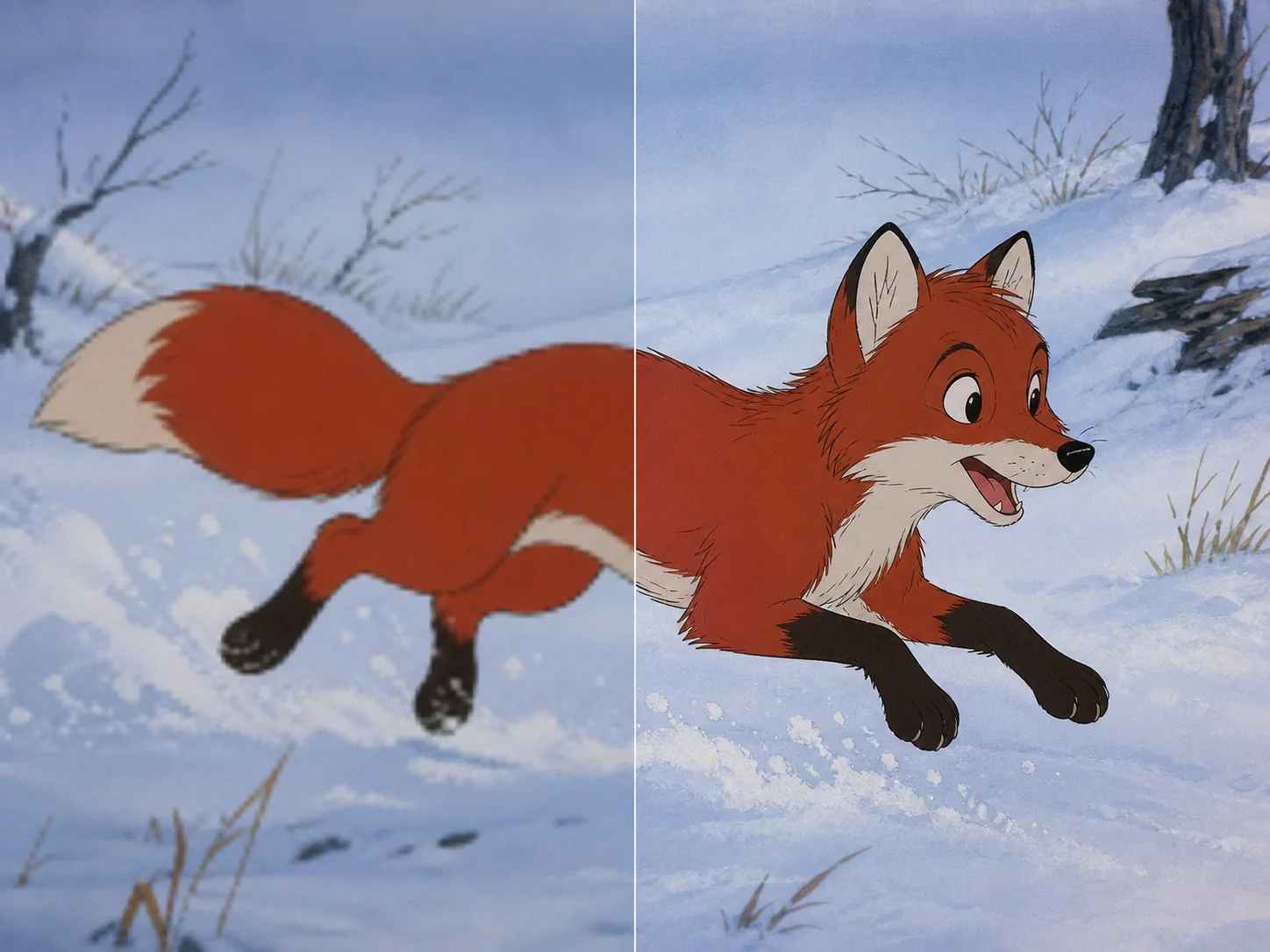
AI Video Upscaler example
Clean contours and snow texture improve on the enhanced side while the fox pose, palette, drawing style, and composition remain identical.
Quality controls
AI Video Upscaler creates plausible high-resolution detail from the evidence in your source. It can improve clarity and reduce visible artifacts, but it cannot guarantee the exact recovery of information that was never recorded.
AI Video Upscaler control
Use the original camera file or highest-quality edit master when possible. Repeated compression removes subtle texture that no enhancement model can verify.
AI Video Upscaler control
These regions are sensitive to reconstruction errors. Compare multiple frames and avoid treating newly invented micro-detail as documentary truth.
AI Video Upscaler control
Pause at several points and scrub through motion. Fine detail should not shimmer, crawl, or change shape sharply between adjacent frames.
AI Video Upscaler control
Upscale for a larger delivery frame, cleaner crop, presentation screen, or editing headroom—not because every source automatically benefits from maximum enlargement.
This workflow protects content while increasing resolution. Choose a creative Video to Video AI workflow when you want a new style, lighting scheme, material, or scene—not just a cleaner output.
Use AI Video Upscaler for
Use another workflow for
Related to AI Video Upscaler
An AI Video Upscaler increases output resolution and reconstructs plausible edge and texture detail from lower-resolution frames. The goal is a cleaner, larger video without creative restyling.
The default external-upload workflow currently provides a 2× Topaz upscale. Whether that reaches 4K depends on the source dimensions; the page does not promise a fixed 4K result for every input.
No. AI Video Upscaler uses the frames themselves as input evidence. The function hides the prompt and exposes only the relevant source upload and supported 2× setting.
It may improve perceived clarity, but severe focus blur, motion blur, or compression can remove source information permanently. Reconstructed detail is plausible rather than guaranteed historical recovery.
Compare the same moments at full size. Check faces, moving edges, fine patterns, gradients, and small text across several frames for shimmer, ringing, or inconsistent detail.
Make the source easier to see
Upload the best source you have and let AI Video Upscaler focus on resolution, edge clarity, and stable reconstructed detail.
Upscale a video