
01 / IDEA
Choose a scene or write your own
Text to Video AI works best with one subject and one visible action. Choose a preset or write one focused shot.
Prompt in / original motion out
Create original motion with Text to Video AI. Choose a directed scene, edit its subject, action, camera, light, or sound, then select a video model. This prompt-only workflow requires no source footage.
Live generator
Begin with a complete scene preset. Text to Video AI loads the subject, action, setting, camera, light, and atmosphere; edit any detail before generation.
Text to Video AI · connected video studio
Keep Text to Video AI as your current workflow, then move into generation, animation, motion transfer, restyling, extension, or restoration without leaving Artaivo.
How it works / three decisions
The workflow is short, but the order matters: define the shot, choose the engine, then review the motion rather than judging only one attractive frame.
Text to Video AI works best with one subject and one visible action. Choose a preset or write one focused shot.
Text to Video AI supports multiple models. Choose one, then set only the frame, duration, resolution, or sound controls it exposes.
Text to Video AI needs motion review, not thumbnail review. Watch the clip, then simplify drift or clarify the camera move.
Prompt anatomy
A useful Text to Video AI prompt describes what changes over time. It gives the model enough direction to stage the scene without stacking contradictory actions into one short clip.
Reliable prompt order
Subject + physical action + environment + shot size + camera movement + lighting + mood or sound + exclusions.
Give Text to Video AI one recognizable person, creature, product, or place instead of a crowded subject list.
Tell Text to Video AI what visibly walks, turns, unfolds, splashes, drifts, or accelerates.
Direct Text to Video AI with one dolly, slide, orbit, crane, tilt, tracking shot, or locked frame.
Show Text to Video AI the light source: morning rim light, overcast sky, neon side light, or studio spotlight.
Ask Text to Video AI for ambience, dialogue, or effects only when the selected model supports native audio.
Useful starting points
The best use is a focused shot with a clear purpose. These examples show where an original generated clip can remove the need to source or film a difficult moment.
Shot 01
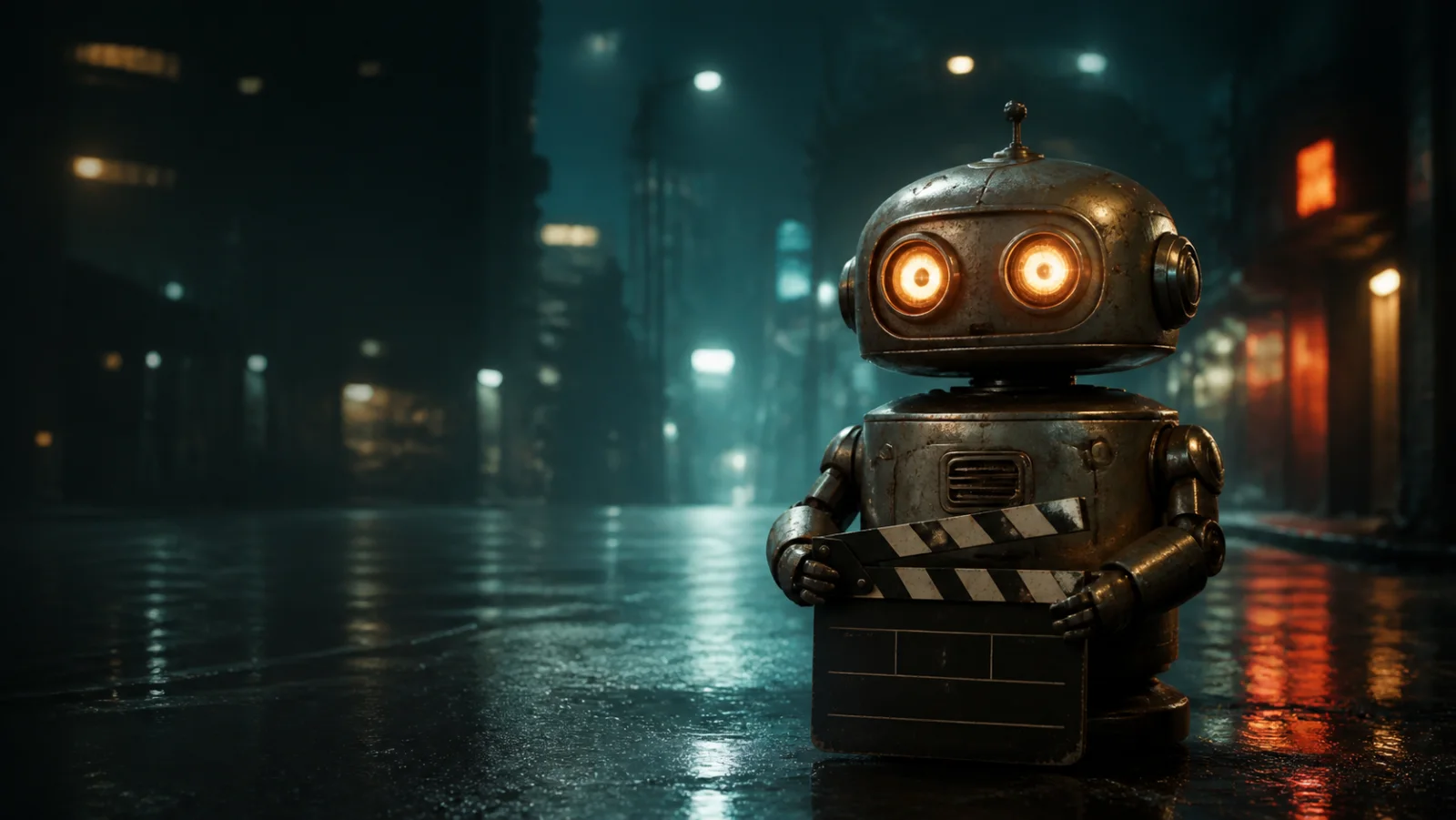
Use Text to Video AI for an establishing shot, weather transition, symbolic insert, or impossible location inside a larger edit.
Shot 02
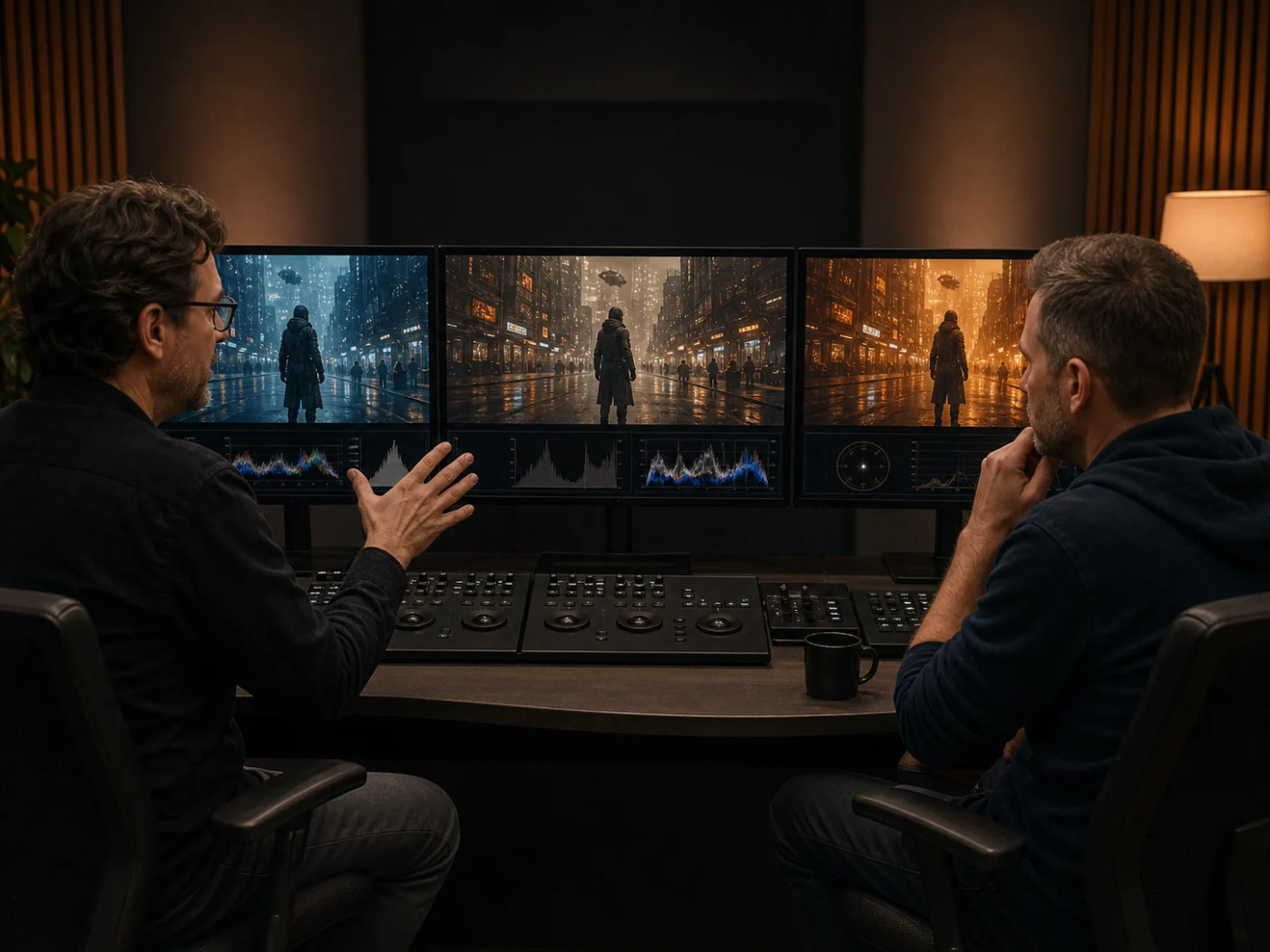
Use Text to Video AI to test launch mood, surface detail, and camera paths before a physical product shoot.
Shot 03
Use Text to Video AI to test scale, creature movement, atmosphere, story worlds, mood reels, and pitch ideas.
Shot 04
Use Text to Video AI for a vertical hook, teaser, loop, or music visual when the model supports 9:16.
Before render / five-second brief
A Text to Video AI prompt becomes easier to judge when the intended transformation is explicit. Read the opening and ending frames as a tiny storyboard before spending credits.
Tell Text to Video AI the subject's opening position, posture, expression, and environment.
Give Text to Video AI one visible turn, reveal, approach, transformation, or burst of speed.
Let Text to Video AI follow, uncover, or hold against the action with one camera response.
Give Text to Video AI a final composition or emotional beat so the generated clip has somewhere clear to arrive.
Model-aware direction
Match the model to the shot, then keep the prompt focused on visible motion.
Model choice is direction
Artaivo connects the same Text to Video AI workflow to multiple supported models. The model menu shows the options currently available in the catalog; parameters and estimated credit cost change with each selection, so compare the controls before generation.
Text to Video AI model badges summarize speed, quality, audio, and resolution without claiming one engine fits every shot.
Text to Video AI parameters are model-specific. Check duration, frame shape, sound, resolution, and credit cost before submission.
Judge Text to Video AI by subject consistency, object geometry, camera behavior, and the complete motion—not one thumbnail.
Adjacent workflows
Search intent changes when the starting material changes. These routes keep image animation, visual preparation, and the full creative workspace separate from this prompt-only page.
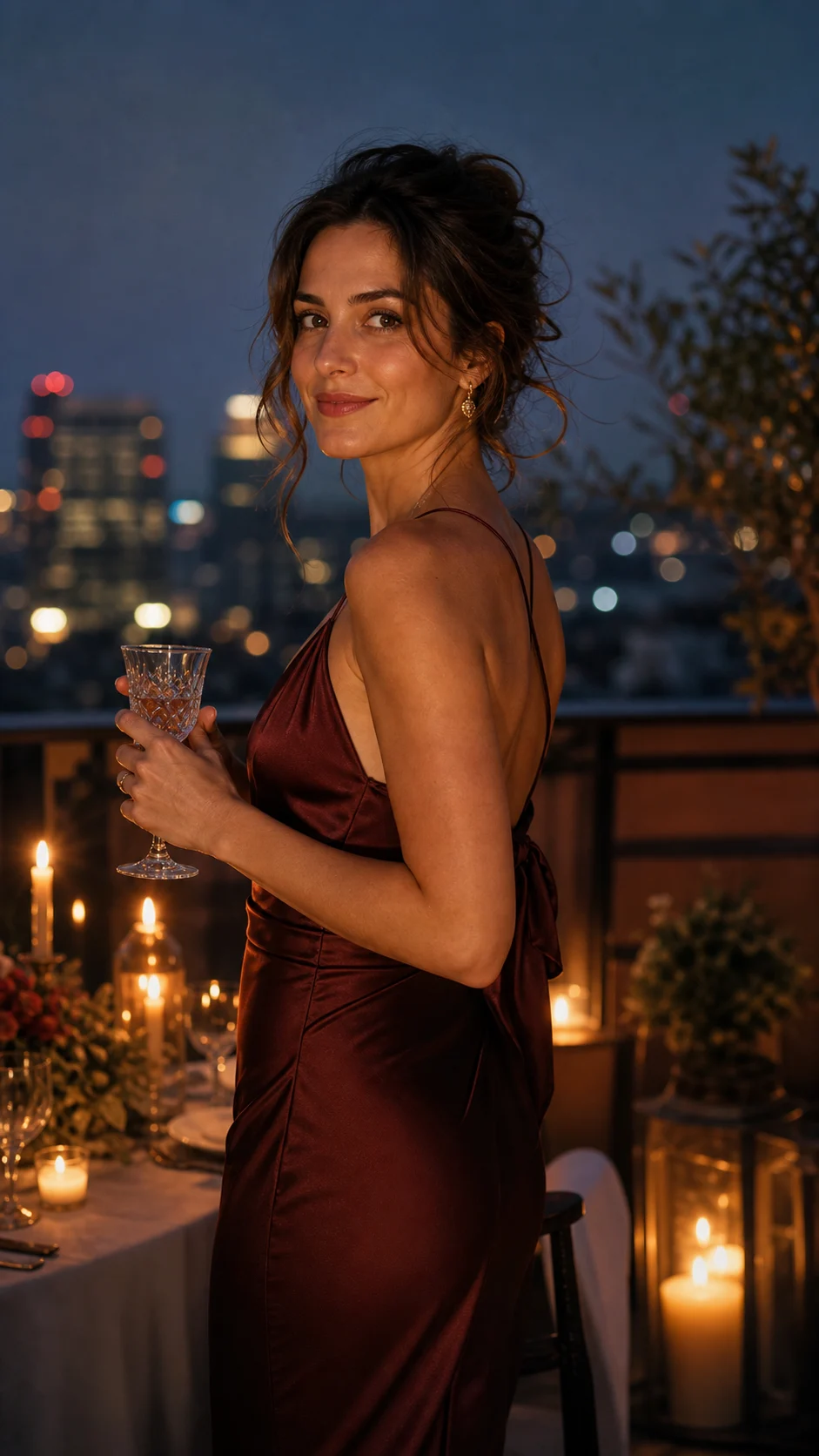
Leave Text to Video AI when motion must start from a specific uploaded composition or character image.
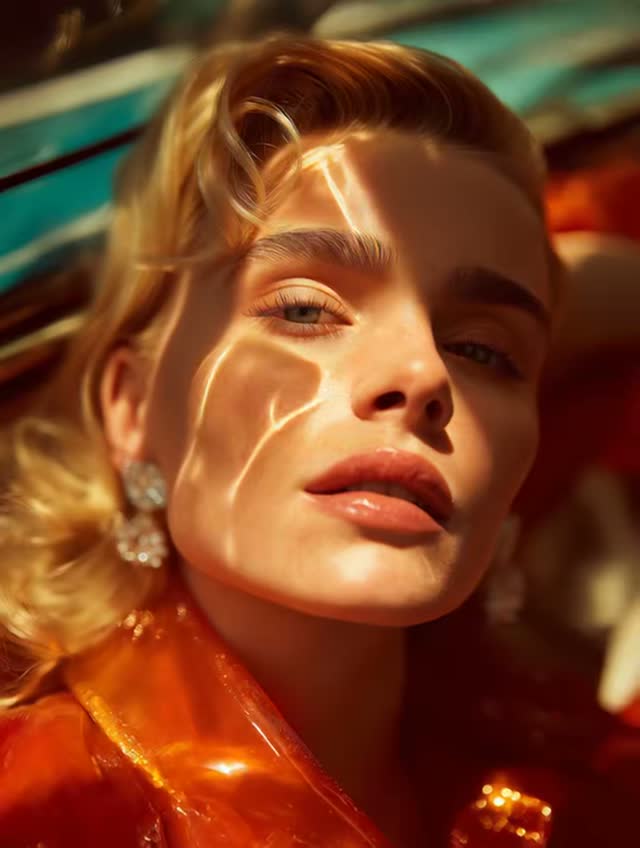
Pair Text to Video AI with image editing when a reference frame needs preparation, repair, or restyling.
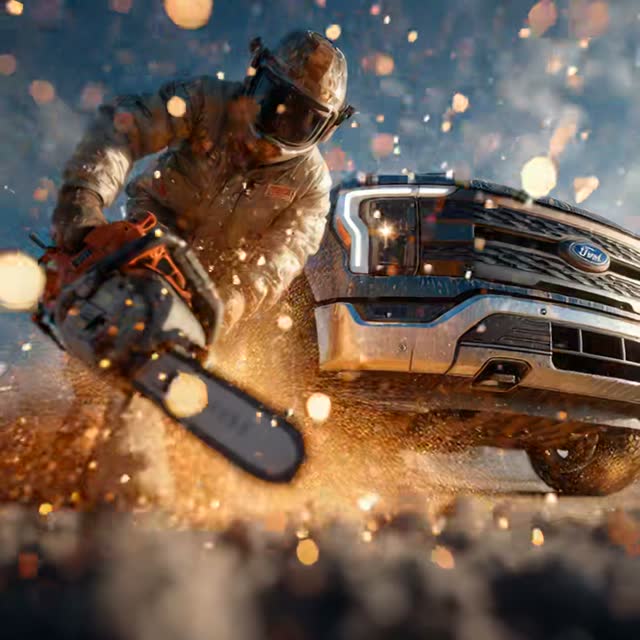
Move beyond Text to Video AI to browse image, reference, motion-control, editing, avatar, and audio workflows.
Text to Video AI turns a written scene into an original clip by directing subject, action, setting, camera, light, style, and supported audio.
Text to Video AI converts a focused prompt after you choose a model and parameters. Review motion, then simplify drift or clarify the camera.
Name one subject, one action, the setting, one camera move, lighting, and mood. Avoid conflicting instructions.
No. This page creates one prompted clip; script-to-video tools build multi-scene narration with voiceover, captions, stock footage, avatars, or timelines.
No image is required. Use Image to Video AI when a specific composition, product, or character must anchor the first frame.
Artaivo uses credits based on model and parameters. The workspace shows an estimate; free, unlimited, or watermark-free access depends on the plan.
Use 16:9 for landscape, 9:16 for vertical platforms, or 1:1 for square placements. Available ratios vary by model.
Commercial rights depend on plan, model terms, prompts, and sources. Review terms and avoid protected logos, unlicensed characters, or misleading real-person depictions.
The next shot starts as a sentence
Choose a directed preset, revise the details, and let Text to Video AI turn the written scene into motion with the model and parameters you select.
Open the generator