Upload footage → transform its visual language

Video to Video AI

Transform footage you already shot without rebuilding its movement from zero. Video to Video AI changes style, lighting, materials, atmosphere, or selected scene details while using the source clip as the timing and composition guide.

Start with one source video, choose a practical transformation preset, and edit the instruction when needed. Runway Aleph keeps the original motion evidence in the workflow, making this a video restyling tool rather than a blank text-to-video generator.

Source video firstEditable style presetsMotion preserved
Use Video to Video AI
Original footageRestyled footage

Source-led transformation studio

Restyle a clip with Video to Video AI

Upload the video first, then select a transformation that describes what should change. Every preset loads a useful instruction into the real Video to Video AI generator and remains editable before generation.

Loading available Kie models...

Video to Video AI · connected video studio

Continue with another video workflow

Keep Video to Video AI as your current workflow, then move into generation, animation, motion transfer, restyling, extension, or restoration without leaving Artaivo.

What this search really means

Transform existing footage, do not start from blank

The central Video to Video AI intent is source-led editing. Users expect to upload a clip, describe a visual change, and keep recognizable motion and timing. The page makes the source video and transformation presets more prominent than the prompt.

Source evidenceDirected transformation
01

Video to Video AI · 01 / Preserve

Keep motion and shot structure

Video to Video AI uses the uploaded clip as temporal guidance. The subject path, camera movement, and edit rhythm should remain recognizable unless your instruction explicitly changes them.
02

Video to Video AI · 02 / Change

Name one visual transformation

A focused request such as “restyle as claymation” or “relight at blue hour” is easier to follow than a long prompt that changes style, cast, location, and action all at once.

03

Video to Video AI · 03 / Control

State what must remain

Preservation language matters. Naming the subject, action, framing, camera path, and timing helps Video to Video AI separate the edit from the invariants.

How Video to Video AI works

A practical video restyling workflow

Treat the source clip as an edit timeline, not a loose inspiration image. Video to Video AI performs better when the desired change is specific and the protected elements are explicit.

FRAME 01

Video to Video AI · 01

Upload a source clip

Choose footage with a clear subject and consistent lighting. Short clips with limited cuts make it easier to retain identity, scene layout, and motion from frame to frame.

FRAME 02

Video to Video AI · 02

Select and refine a preset

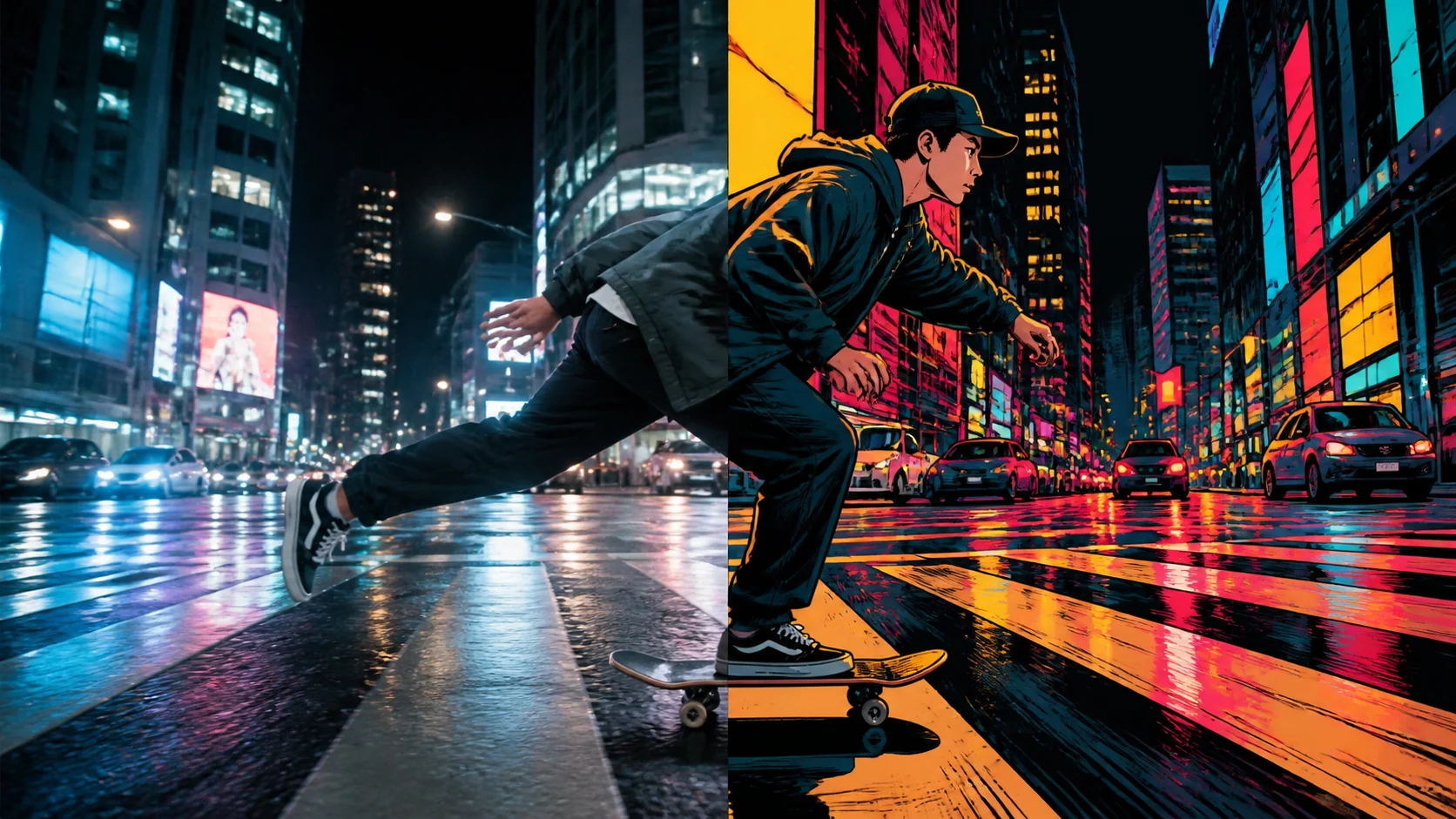
Start with graphic novel, claymation, watercolor, or relighting. The loaded instruction is fully editable, so you can add a material, palette, or protected detail.

FRAME 03

Video to Video AI · 03

Generate and compare

Review the new video against the original. Check subject identity, geometry, limb continuity, camera path, and timing—not only whether the first frame looks attractive.

Transformation examples

Change the medium while keeping the shot

Good Video to Video AI examples make the preservation target visible. The car, person, camera angle, and scene geometry still align even when the rendered medium changes.

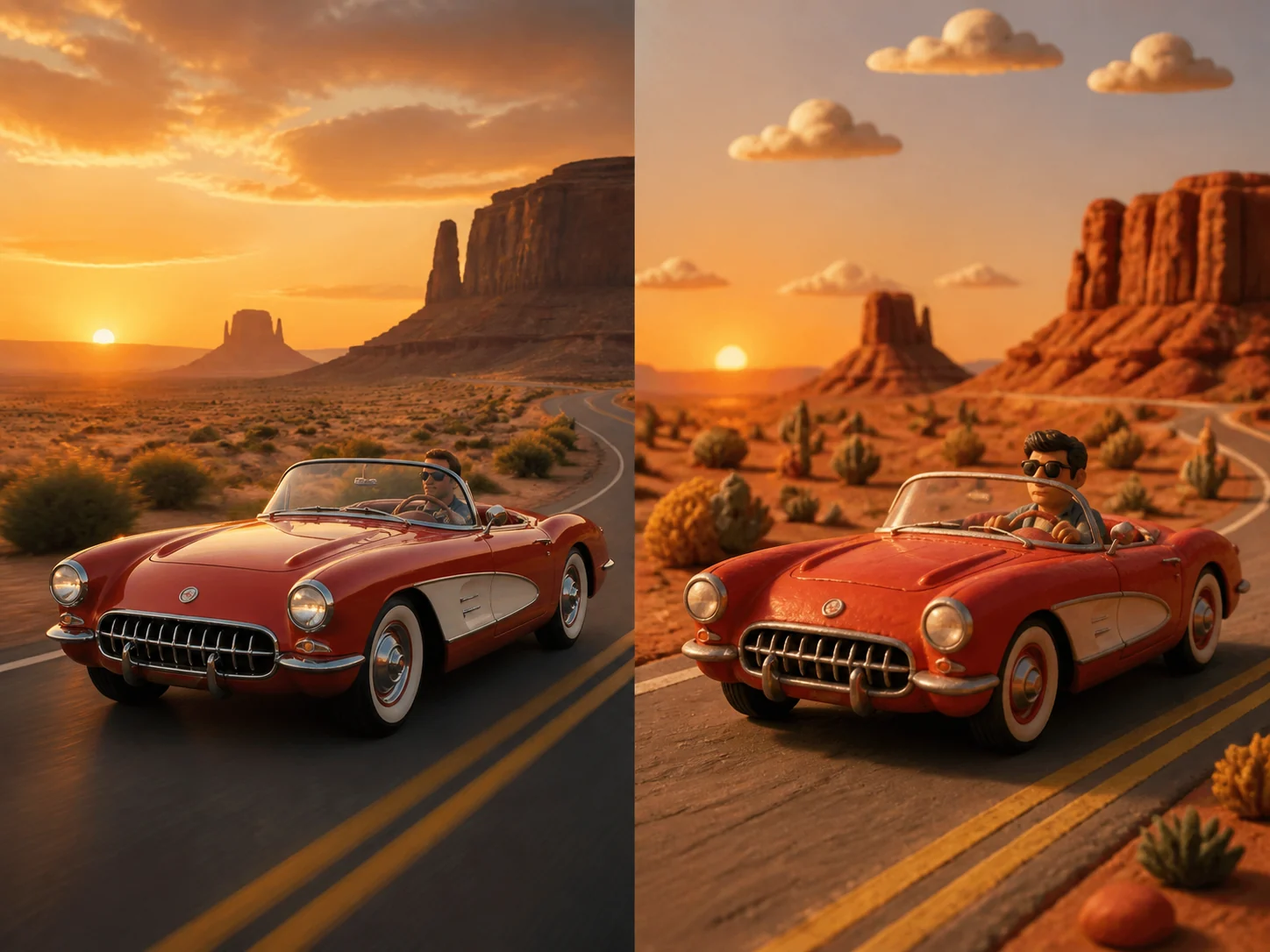
Red convertible aligned in photoreal and claymation video styles

Video to Video AI example

Live action to claymation

A material restyle changes surfaces and rendering while preserving the moving car, road direction, lens position, and sunset timing.

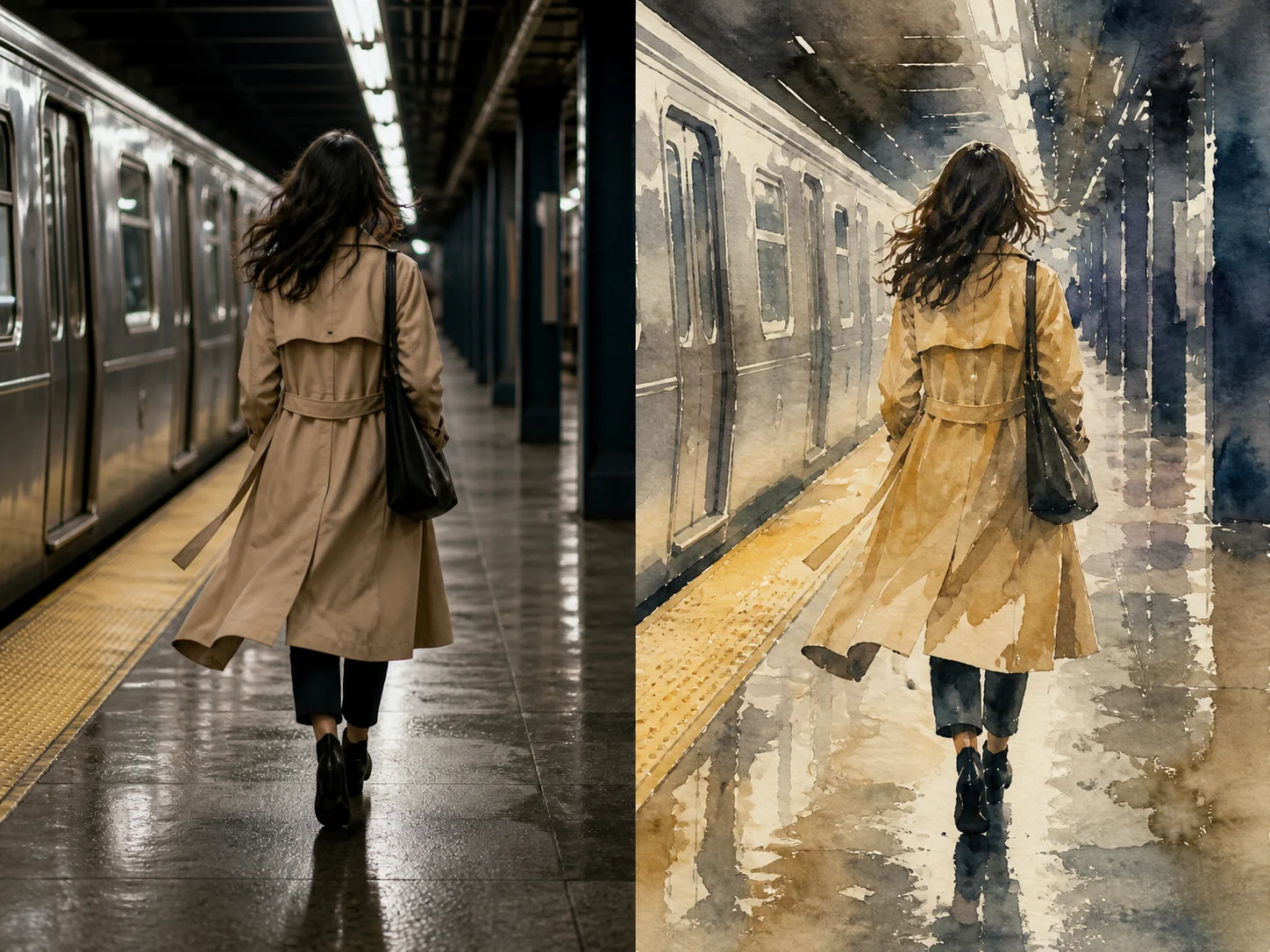
Woman on a subway platform aligned in documentary and watercolor styles

Video to Video AI example

Documentary to watercolor

The coat, walking direction, platform perspective, and body pose remain the anchors while watercolor texture replaces live-action rendering.

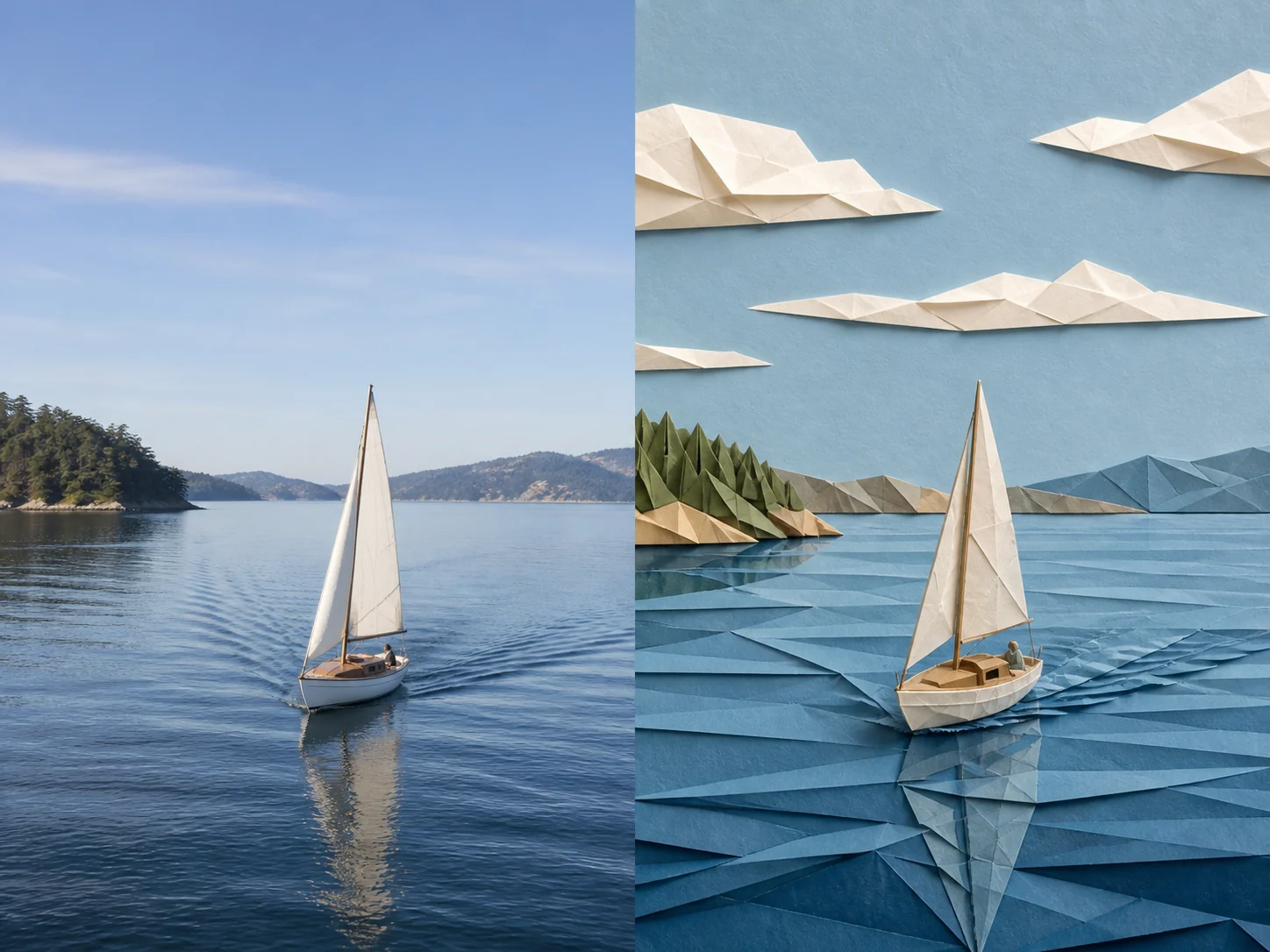
Aligned sailboat frame in live-action and folded-paper visual styles

Video to Video AI example

Live action to paper craft

The sailboat, mast, wake, and horizon keep the same positions while folded-paper materials replace the photographic surface treatment.

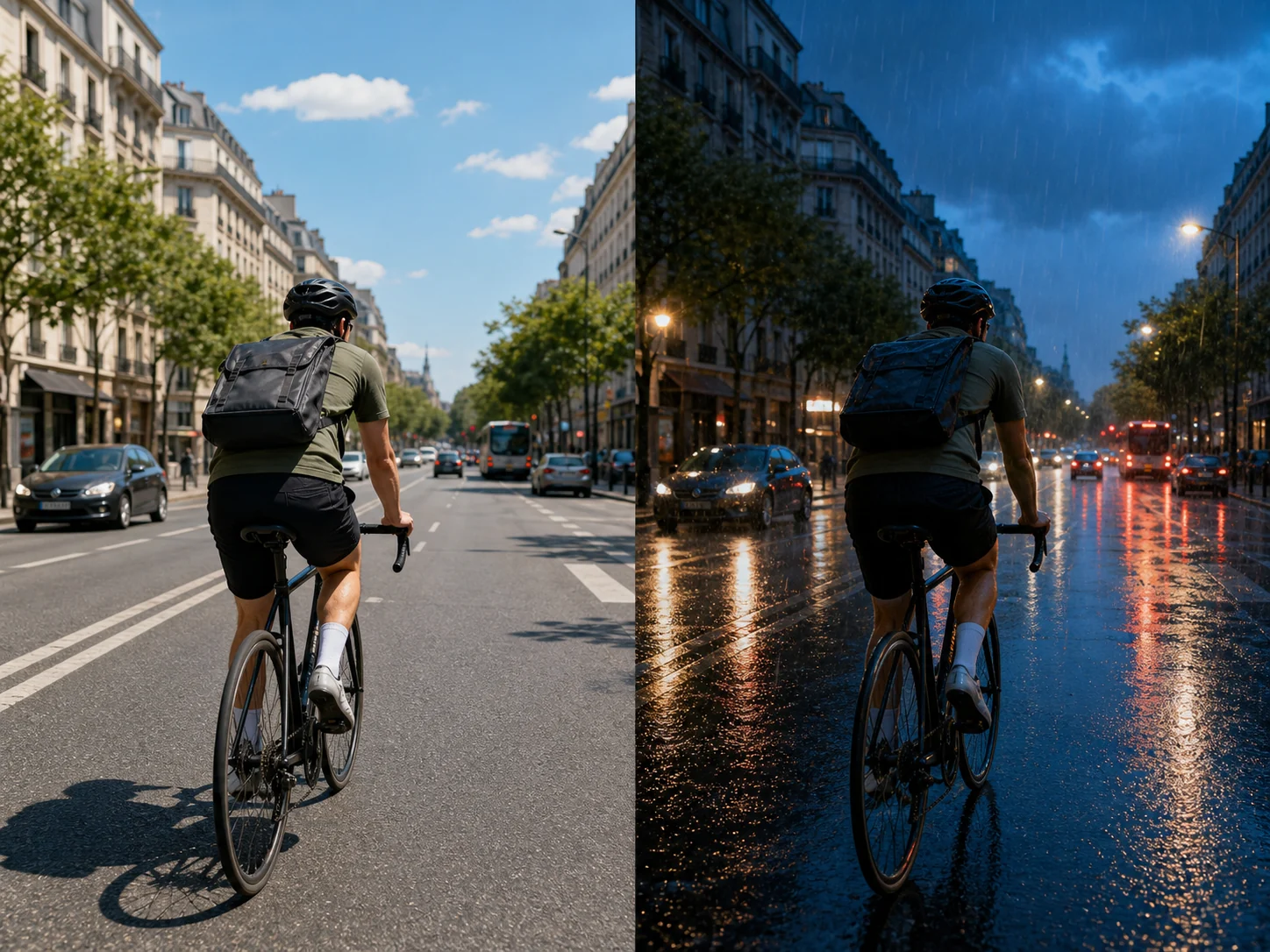
Aligned cyclist video frame in midday and rainy blue-hour lighting

Video to Video AI example

Daylight to rainy blue hour

A relighting edit changes weather, reflections, and time of day while preserving the cyclist, bicycle, road geometry, and camera viewpoint.

Prompt controls

Write an edit instruction, not a screenplay

Video to Video AI prompting is strongest when it reads like a concise editor note. Begin with an action verb, identify the change, then list the elements that should remain consistent.

01

Video to Video AI control

Start with a transformation verb

Use “restyle,” “relight,” “replace,” “remove,” or “change.” These verbs make the requested operation easier to separate from the source content.

02

Video to Video AI control

Protect temporal anchors

Ask to preserve action, timing, camera movement, framing, and scene geometry when those details are essential to the original performance.

03

Video to Video AI control

Change one layer at a time

First test the visual medium or lighting. Add a location or character replacement only after you know the motion transfer is stable.

04

Video to Video AI control

Evaluate the entire clip

A successful first frame can still drift later. Watch faces, hands, small objects, and background lines across the complete output.

Use Video to Video AI for creative transformation

This workflow owns visual restyling and prompt-based edits to existing footage. It should not compete with pages for resolution enhancement, temporal extension, or motion transfer from one performer to another.

Use Video to Video AI for

  • Restyle footage into animation or another medium
  • Relight a clip or change selected scene details
  • Preserve motion while changing visual appearance

Use another workflow for

  • Sharpening or upscaling a low-resolution video
  • Adding new seconds after a clip ends
  • Driving a still character with another performer’s motion

Video to Video AI questions, answered

What is Video to Video AI?

Video to Video AI transforms an uploaded source clip using a text edit or style instruction while retaining temporal evidence such as motion, timing, composition, and camera movement.

Is Video to Video AI the same as text to video?

No. Text to video creates a new clip from a written scene. Video to Video AI begins with footage you upload, so the existing action and shot structure guide the transformation.

Can I choose a style without writing a prompt?

Yes. The page includes practical style and relighting presets. Selecting one loads an editable instruction, so you can generate immediately or refine the preservation details.

How do I preserve the original movement?

Use a short source clip with a clear subject and ask to preserve action, timing, camera movement, framing, and geometry. Avoid changing too many scene layers in the first generation.

Can Video to Video AI improve video quality?

It can change rendering and perceived detail, but it is a creative transformation workflow. Use the AI Video Upscaler when the primary goal is higher resolution and cleaner edges without changing the style.

Keep the shot. Change the world.

Transform existing footage with an editable visual direction

Upload a source clip, choose a meaningful preset, and use Video to Video AI to preserve motion while changing appearance.

Restyle a video