16:9
Wide scenes
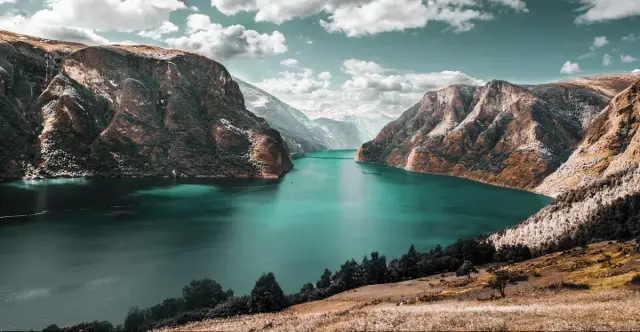
Expand image backgrounds for banners, slides, and landscape compositions.
Online Expand Image tool
Use the Artaivo Expand Image tool to upload a photo, describe how the surrounding scene should continue, and choose the output options available for the selected model. Artaivo keeps the source, prompt, generation, and result in one focused workspace.
Tight crop / Wider frame
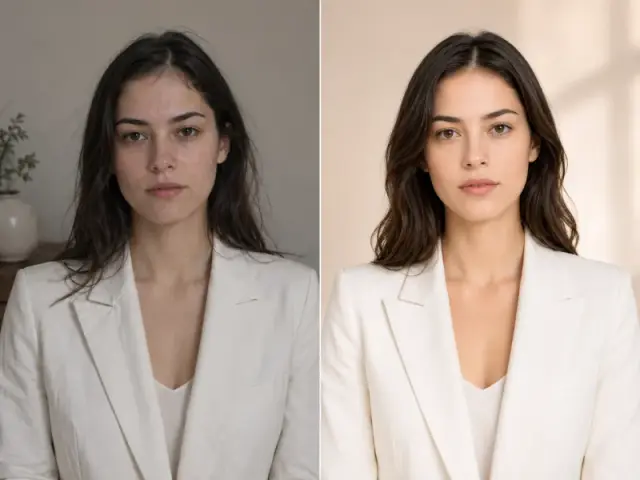
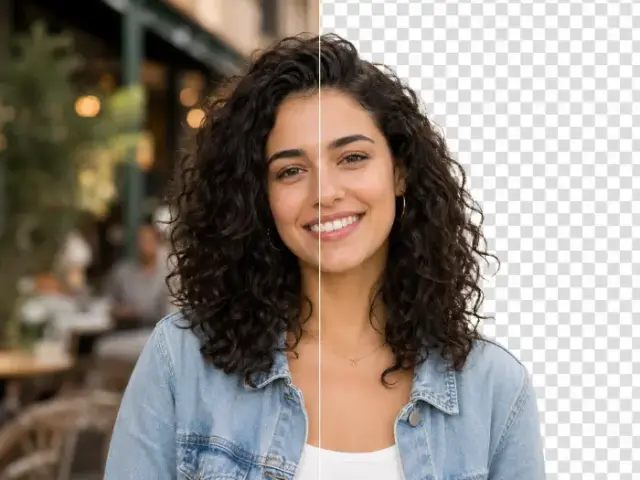
Drag the divider to inspect the Expand Image result beside the tight crop. The expanded area should continue the setting, lighting, and visual direction around the original subject.
Try Expand ImageOriginal crop
Source frame
Expanded canvas
AI outpainting
Expand image for more destinations
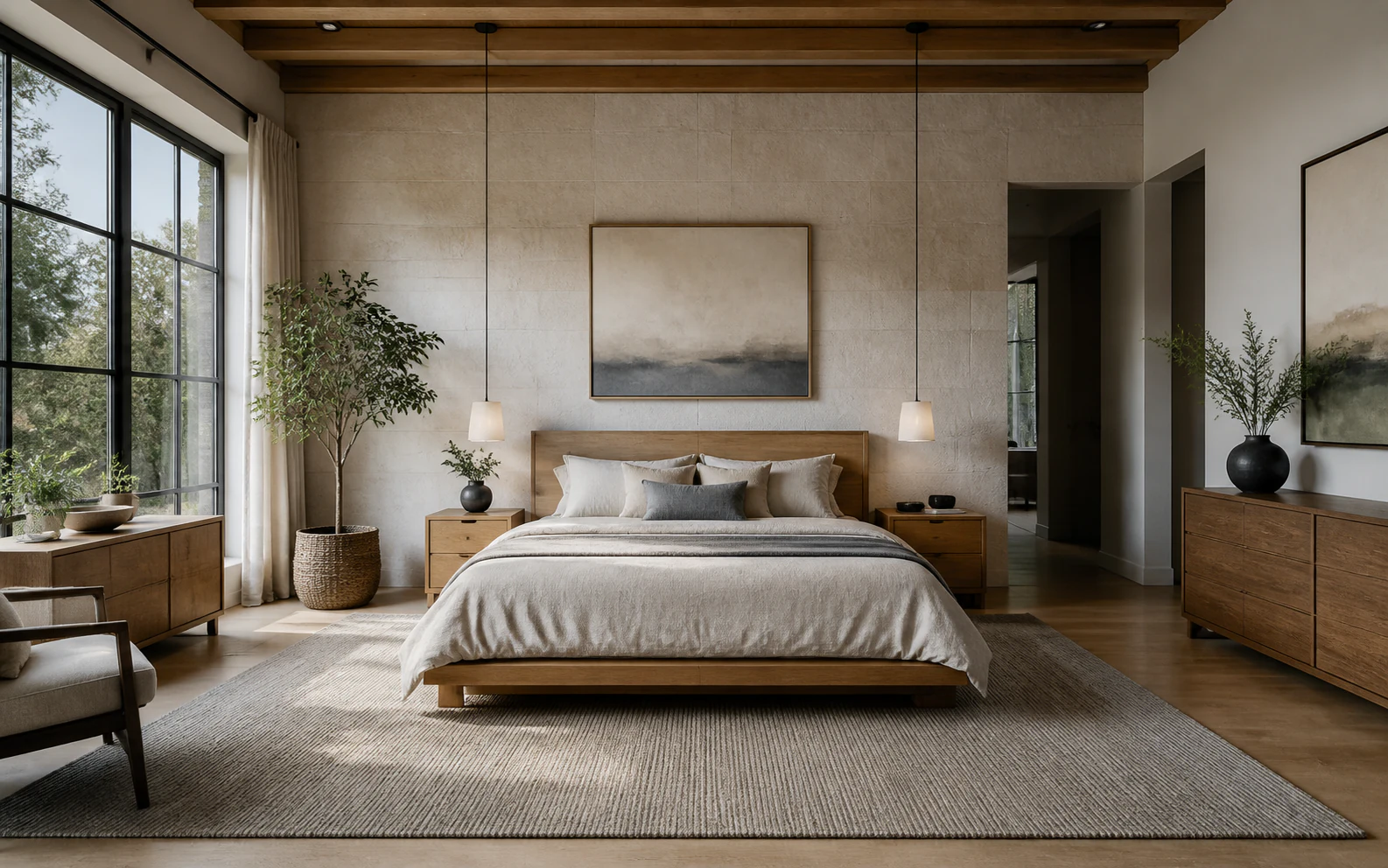
The Expand Image tool adds context around a composition instead of stretching it. Use the prompt to explain what should continue into the new canvas, then select the closest ratio offered by the active model.
16:9
Expand image backgrounds for banners, slides, and landscape compositions.
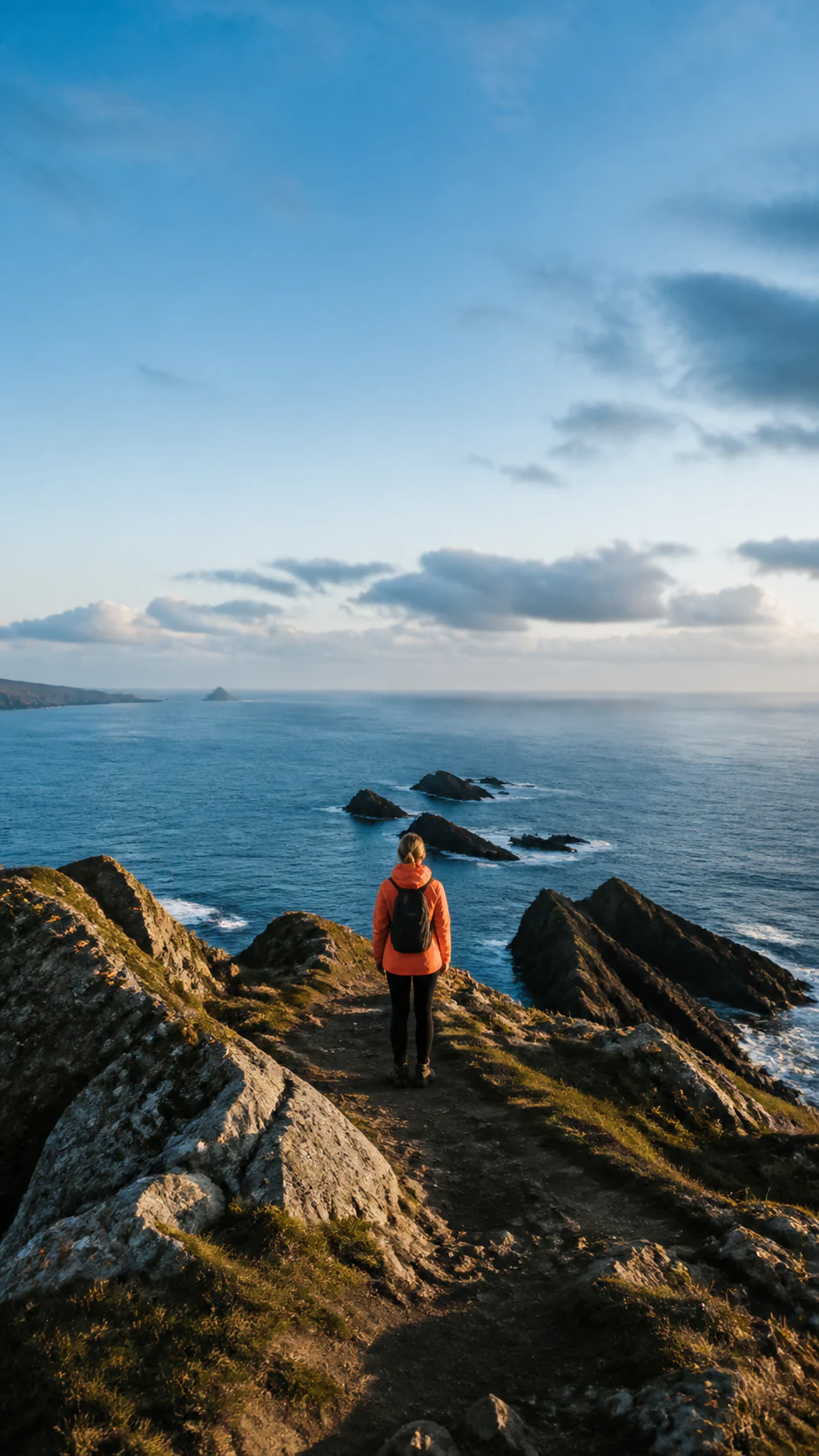
9:16
Expand image height for vertical placements without stretching the subject.
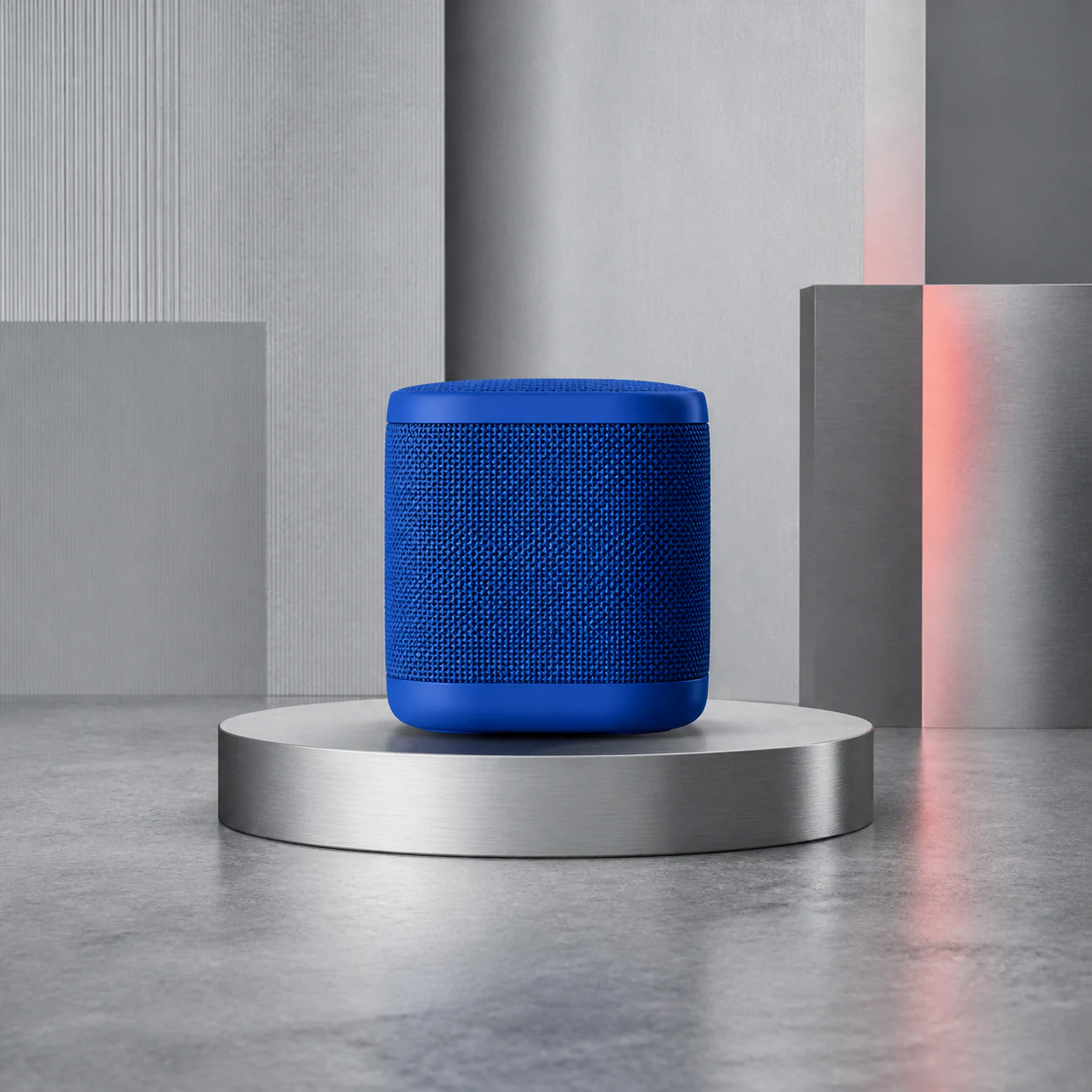
1:1
Expand image space evenly around a subject for feeds and marketplace tiles.
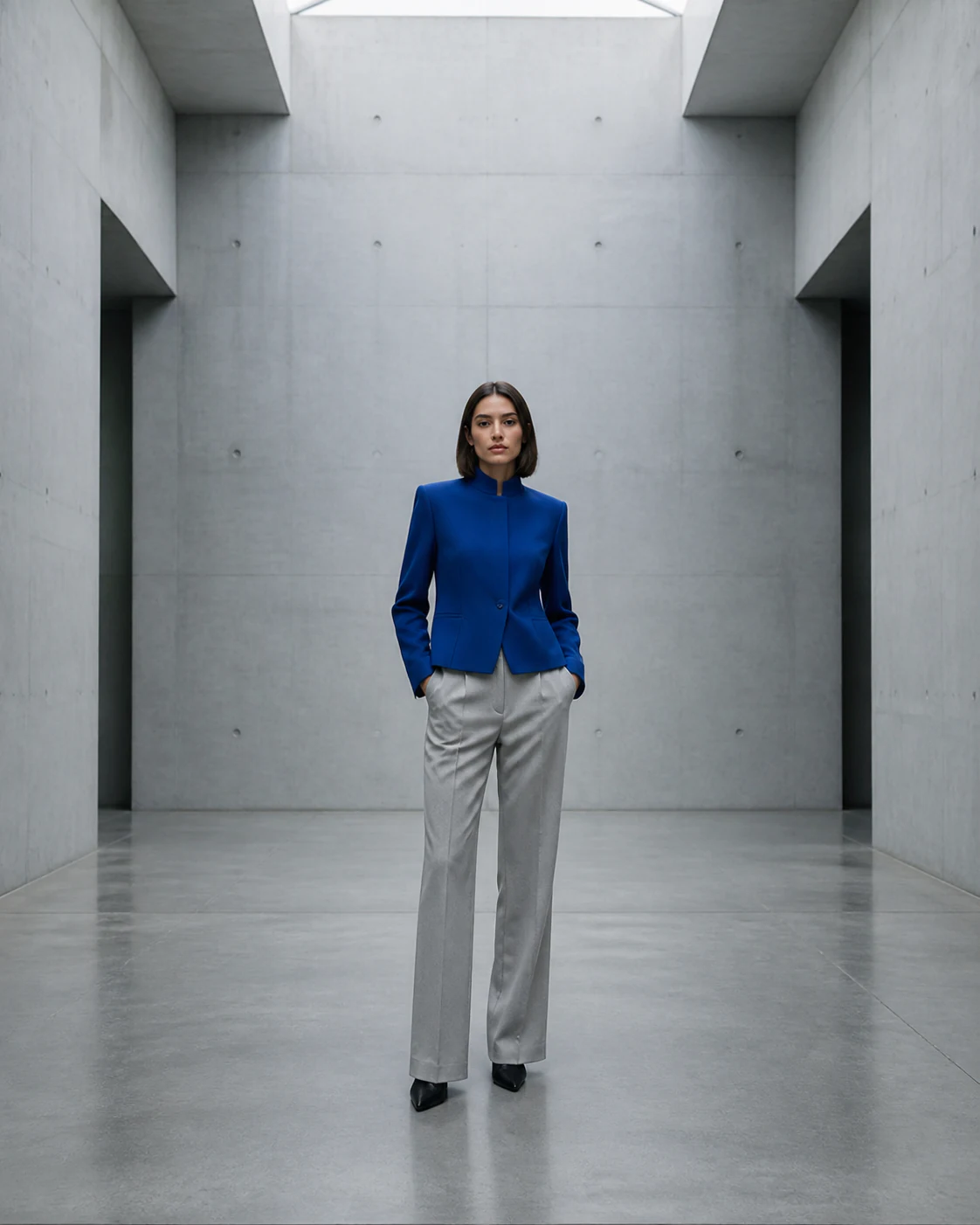
4:5
Expand image framing vertically for product cards, posters, and portraits.
Choose the source whose frame feels too tight and add it to the Expand Image workspace above.
State what should continue beyond the edges, what must stay central, and the intended layout.
Select the available output options, run Expand Image, inspect the new edges, and download the result.
Use the right operation
These edits solve different layout problems. Choose Expand Image when you need newly generated surroundings; use the other operations when the existing pixels already contain what you need.
Adds generated scene beyond the current borders to create a wider or taller composition.
Unlike Expand Image, resizing changes dimensions and cropping removes content without inventing meaningful space outside the frame.
Unlike Expand Image, upscaling increases output size and detail while keeping roughly the same composition and field of view.
Expand Image uses AI outpainting to generate new visual content beyond an image's existing borders. It is useful when the original crop is too tight or the composition needs a different aspect ratio.
No. Resizing changes pixel dimensions and can stretch or shrink existing content. Expanding generates additional surroundings outside the current frame while aiming to continue the scene.
Describe what should appear beyond the borders, the lighting and perspective to continue, the subject placement to preserve, and the target use such as a wide banner or vertical cover.
Available aspect ratios depend on the selected image model. The current choices appear in the workspace, where you can select the option closest to your intended layout.
The workflow is intended to extend the composition, but generated results can vary by model and prompt. Review important faces, text, product details, and edge transitions before using the output.
You can prepare the source image and prompt before signing in. If generation uses Artaivo credits, the current cost and available balance are shown in the workspace before the task starts.
Try Expand Image and Give the Composition More Room
Upload one source to Expand Image, describe the scene beyond its edges, and create a frame that fits the next layout.
Expand image now