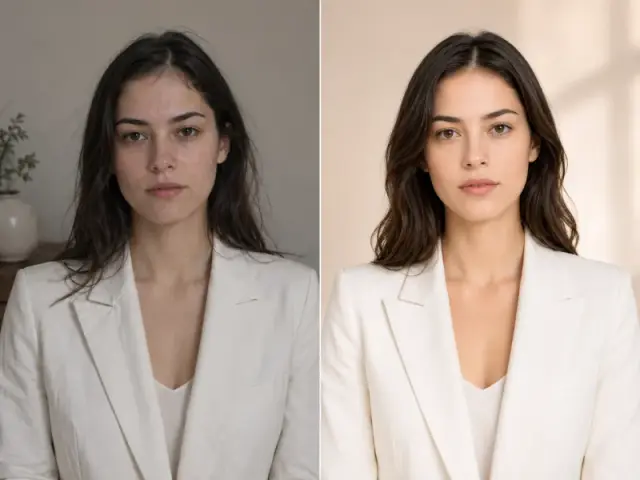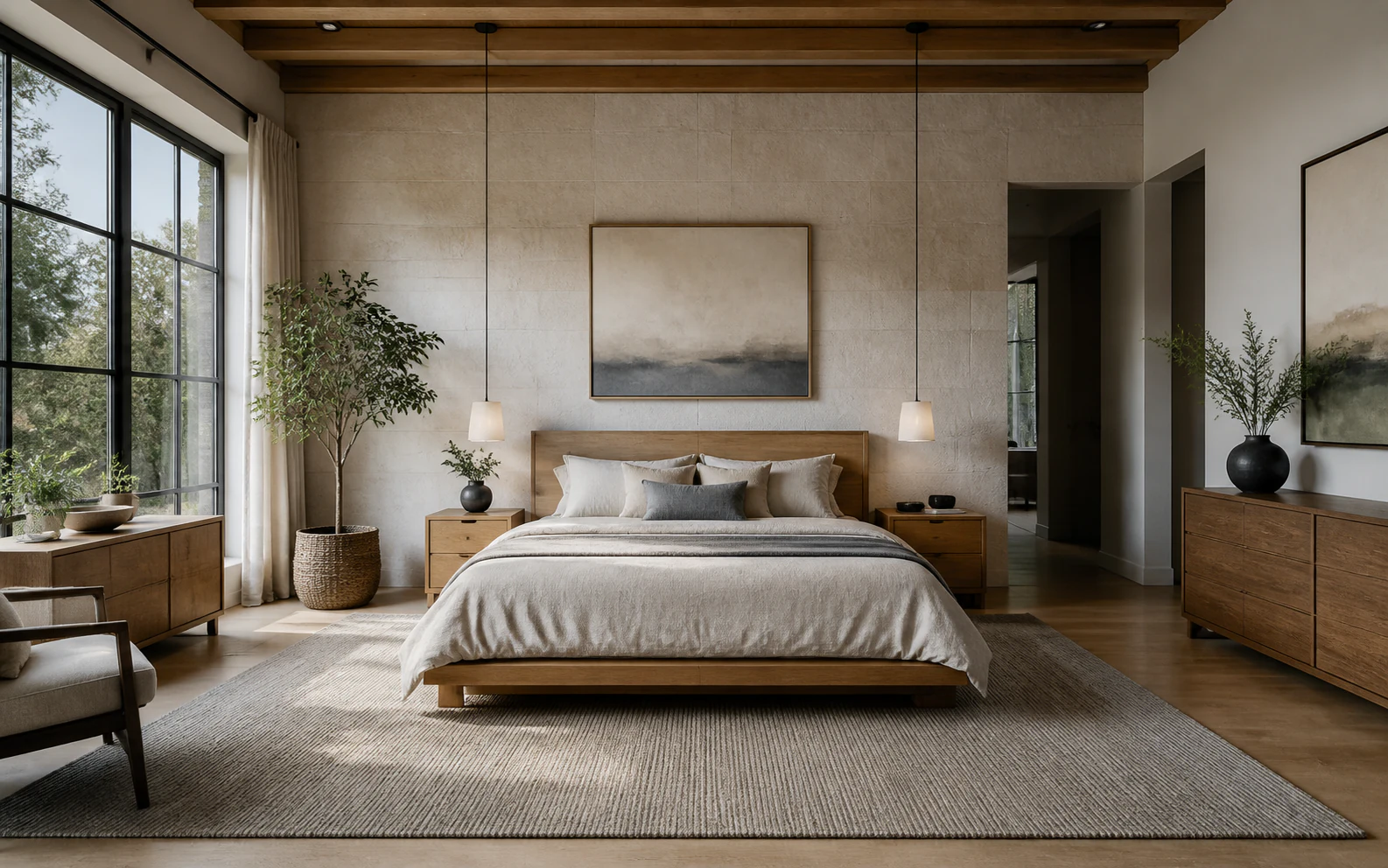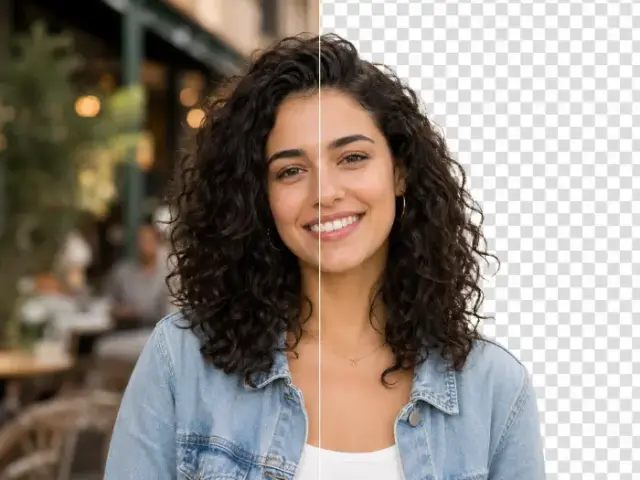
Choose 2× for a measured increase
Double the source width and height when you need a larger file without jumping directly to the maximum available scale.
AI image upscaler online
Use the Artaivo Image Upscaler to increase image resolution without rebuilding the composition. Upload one JPG, PNG, or WebP image, choose 2× or 4×, and review the generated result in the same workspace.
Source-aware upscale
Same composition, larger output
Resolution, not a new composition
An AI image upscaler enlarges the pixel dimensions of a source image and estimates detail for the larger output. The subject, crop, and overall layout stay broadly consistent, which makes upscaling a practical final step before a larger digital placement or print test.
Double the source width and height when you need a larger file without jumping directly to the maximum available scale.
Use 4× when the source must fill a much larger canvas, then inspect faces, text, logos, and fine edges before publishing.
AI upscaling can estimate texture and edges, but it cannot recover ground-truth detail that was never present in the source.
Choose a JPG, PNG, or WebP source up to 10 MB and add it to the Image Upscaler workspace above.
Pick the scale factor that matches the output size you need. No text prompt is required for this workflow.
Start the task, compare important details at full size, and download the result when it is ready.
Focused use cases
Start with the clearest source available. Upscaling is most useful when the composition already works but the pixel dimensions are too small for the next placement.
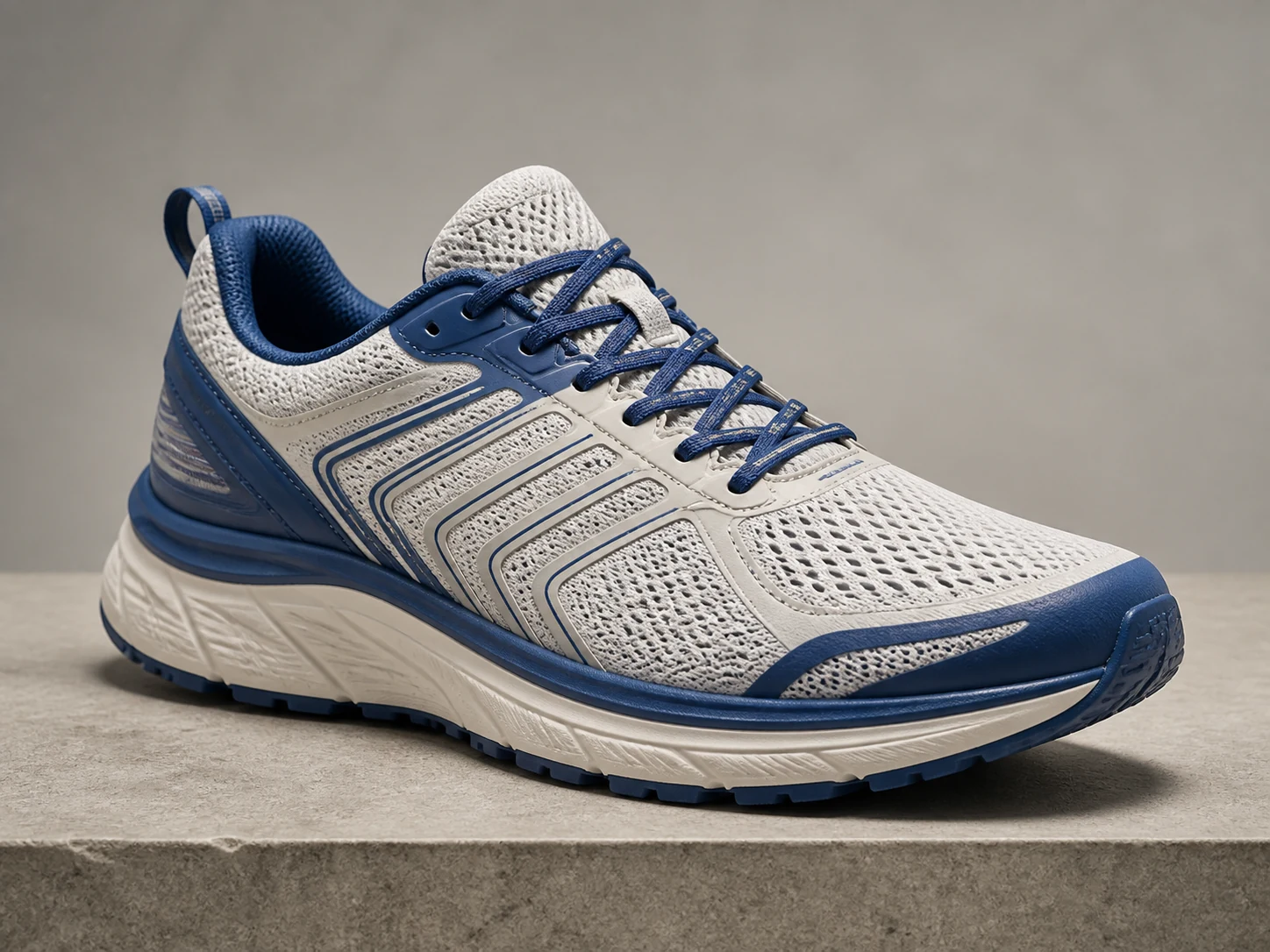
Prepare a small catalog or marketplace image for a larger product page, while checking labels and brand marks after generation.
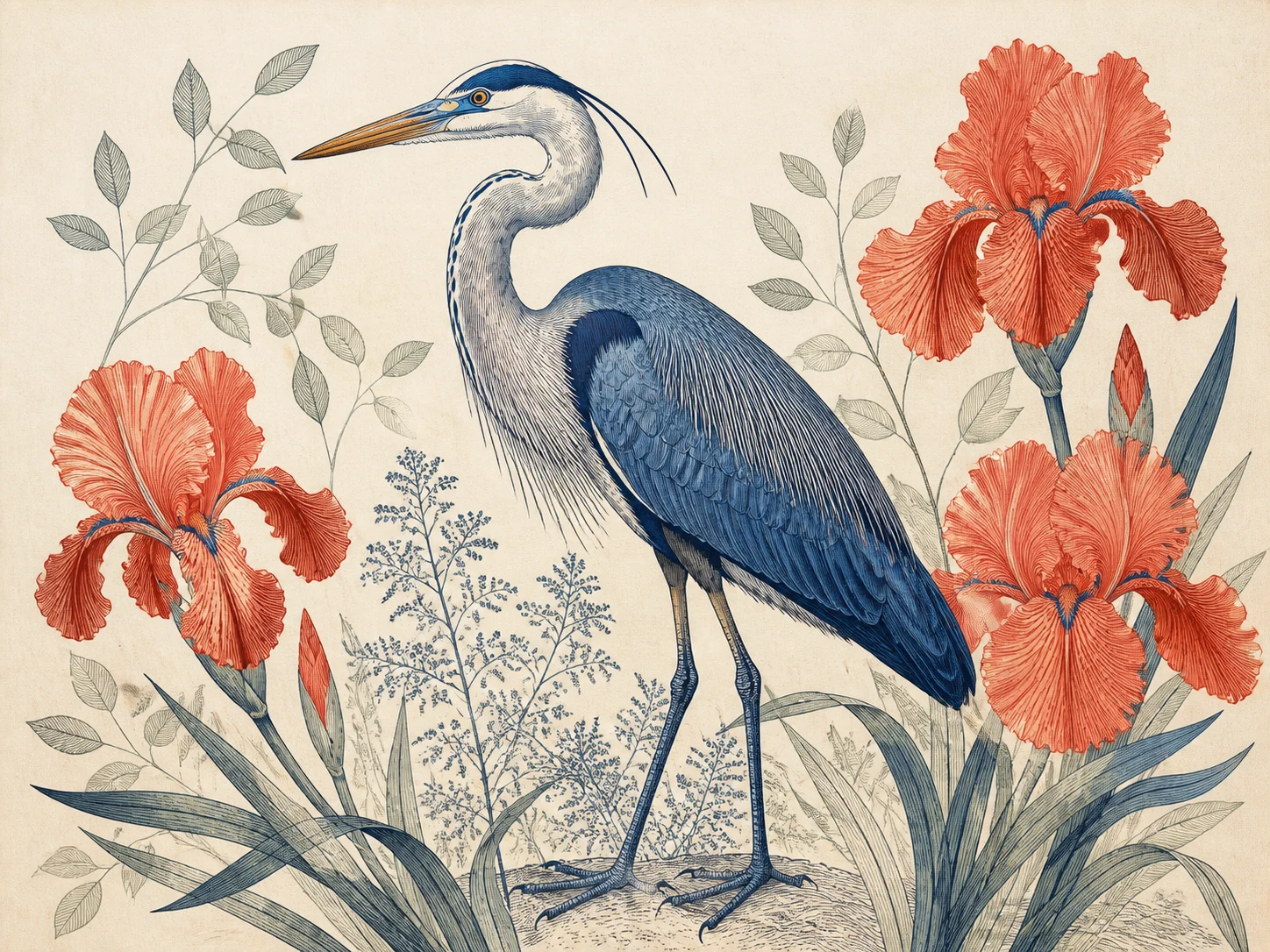
Create a larger export for wallpapers, portfolios, or print experiments without changing the artwork's basic framing.
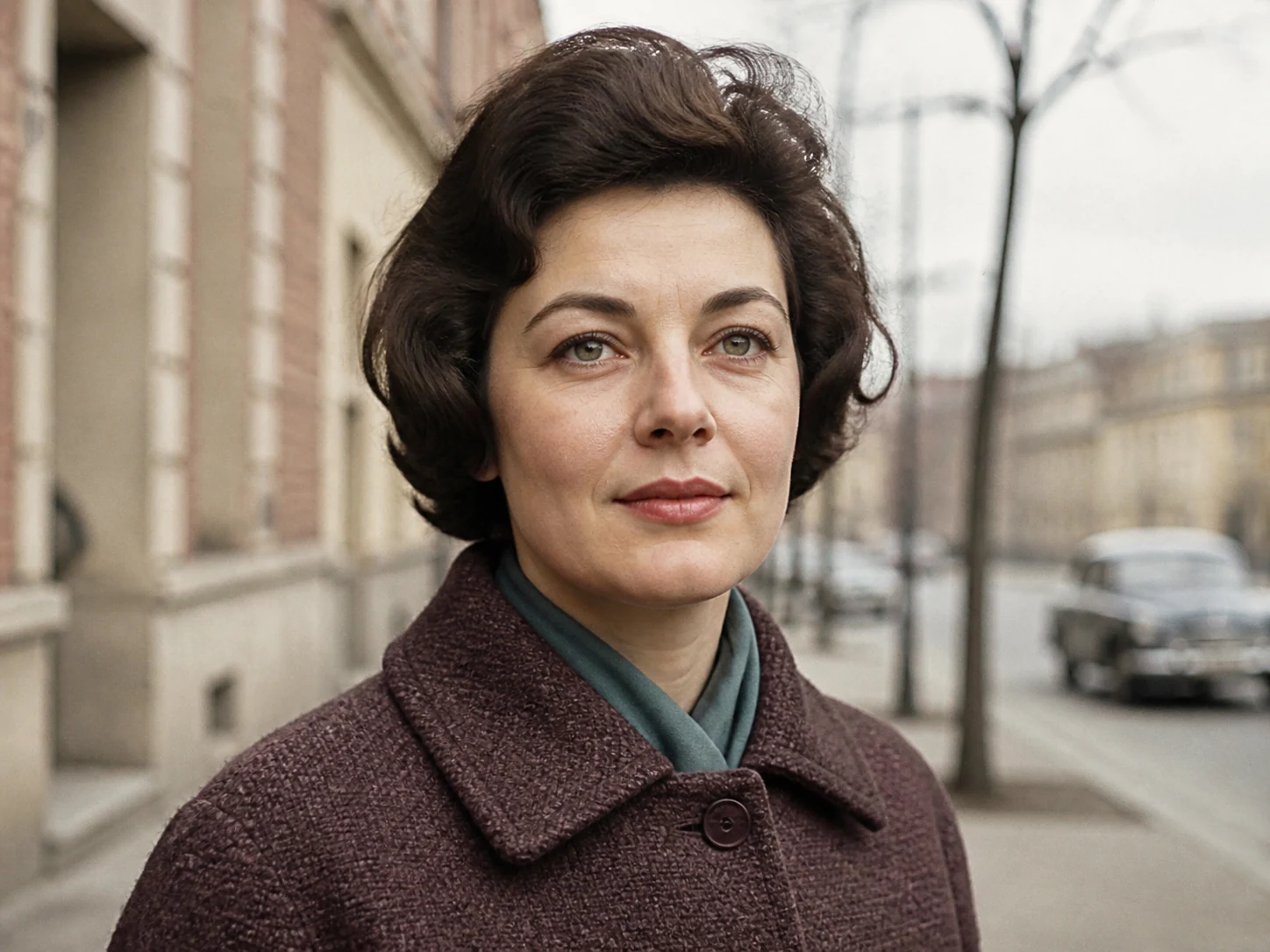
Increase the size of a small portrait or scan, then review facial features and fine textures for generated changes.
Image Upscaler detail test
An Image Upscaler result should be judged at full size, not only as a small preview. Open every Image Upscaler output at 100% and compare it with the original. A careful Image Upscaler review checks whether texture stays believable without repeated patterns, brittle edges, waxy skin, or invented marks. The strongest Image Upscaler result remains convincing from the whole composition to its smallest important detail.
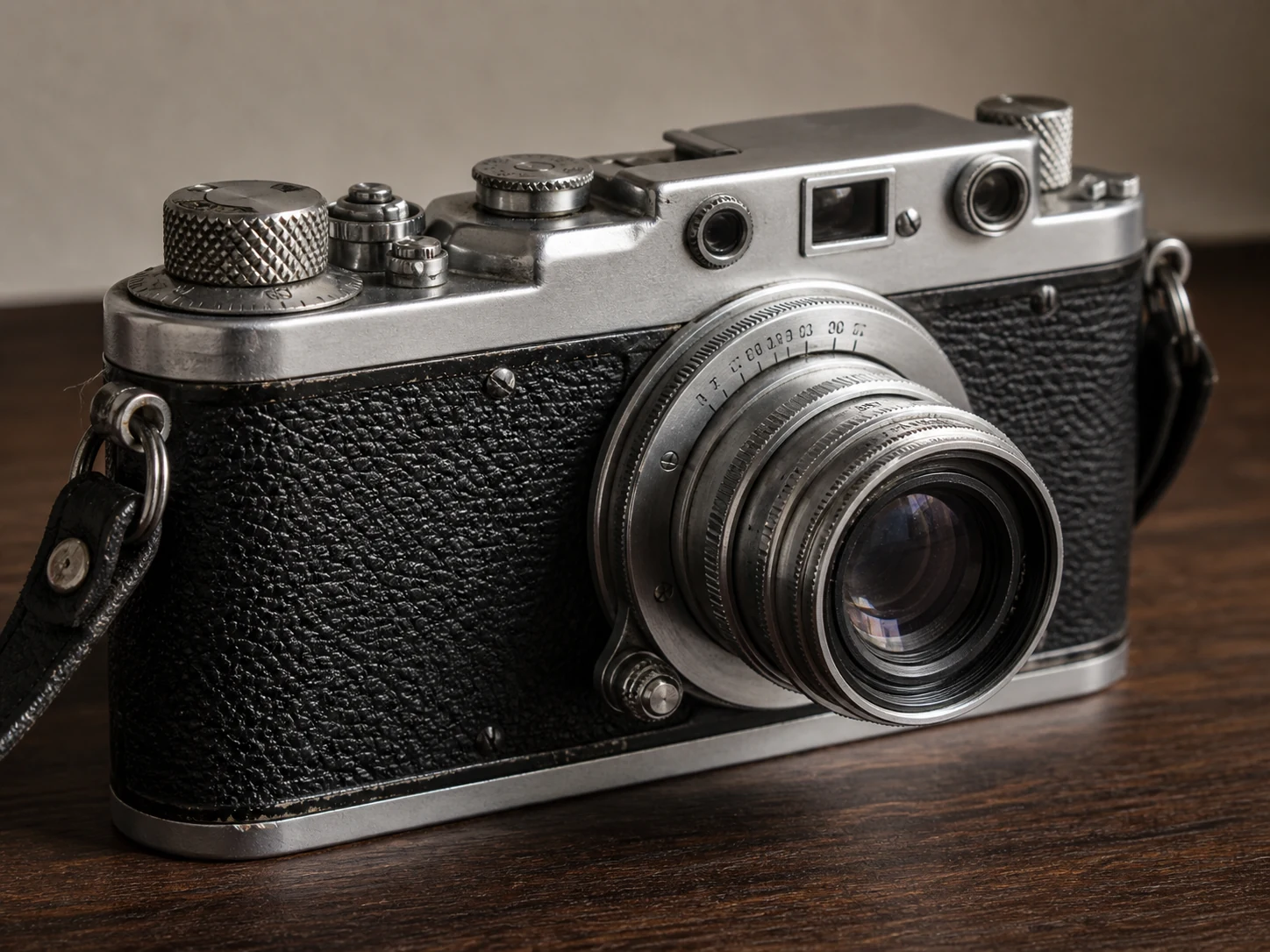
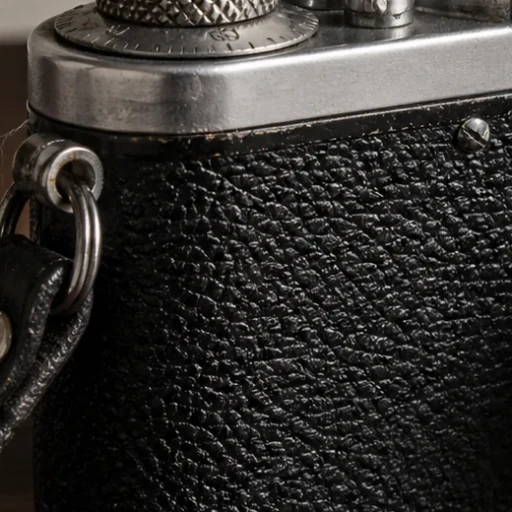 2× detail
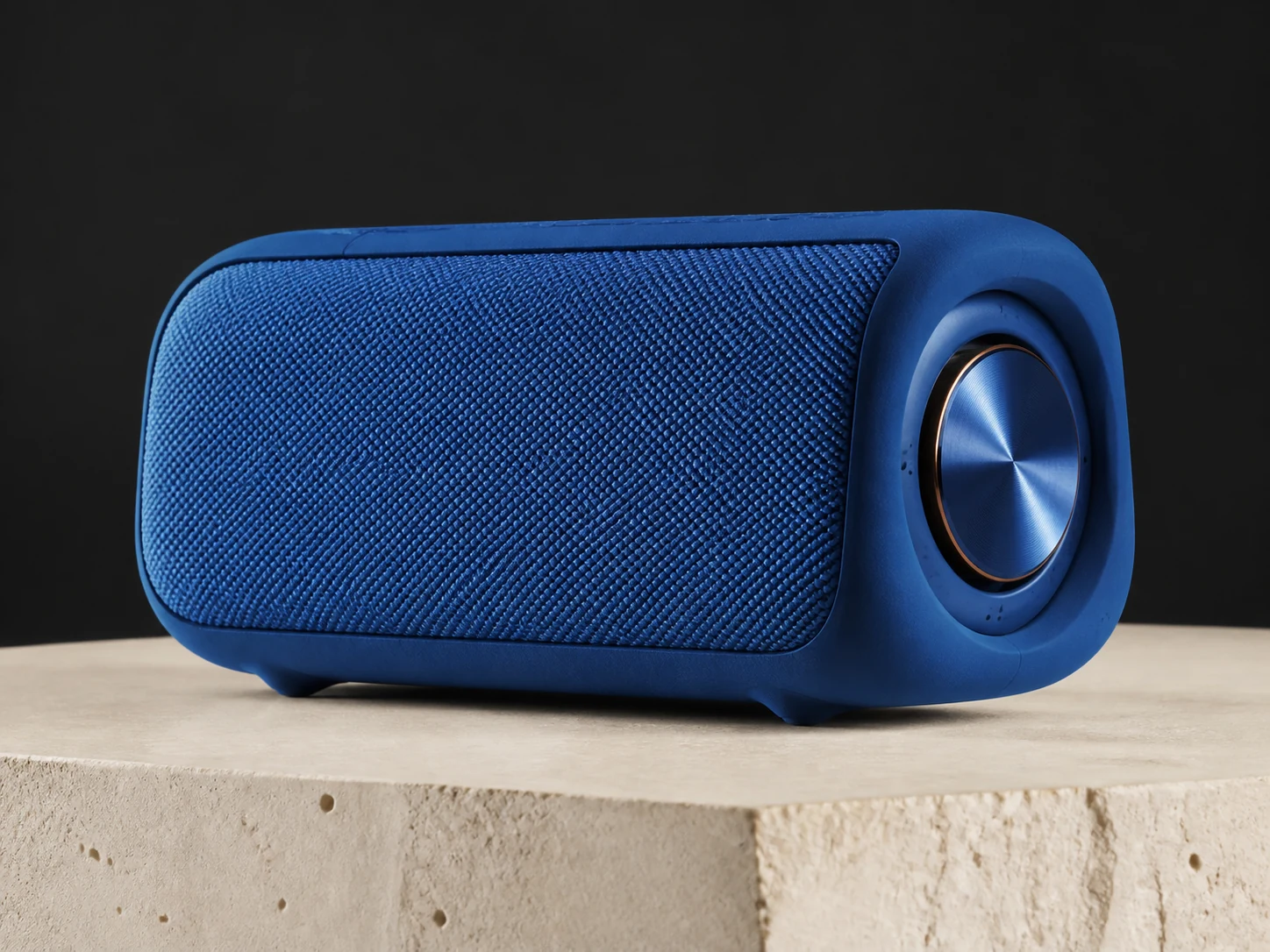
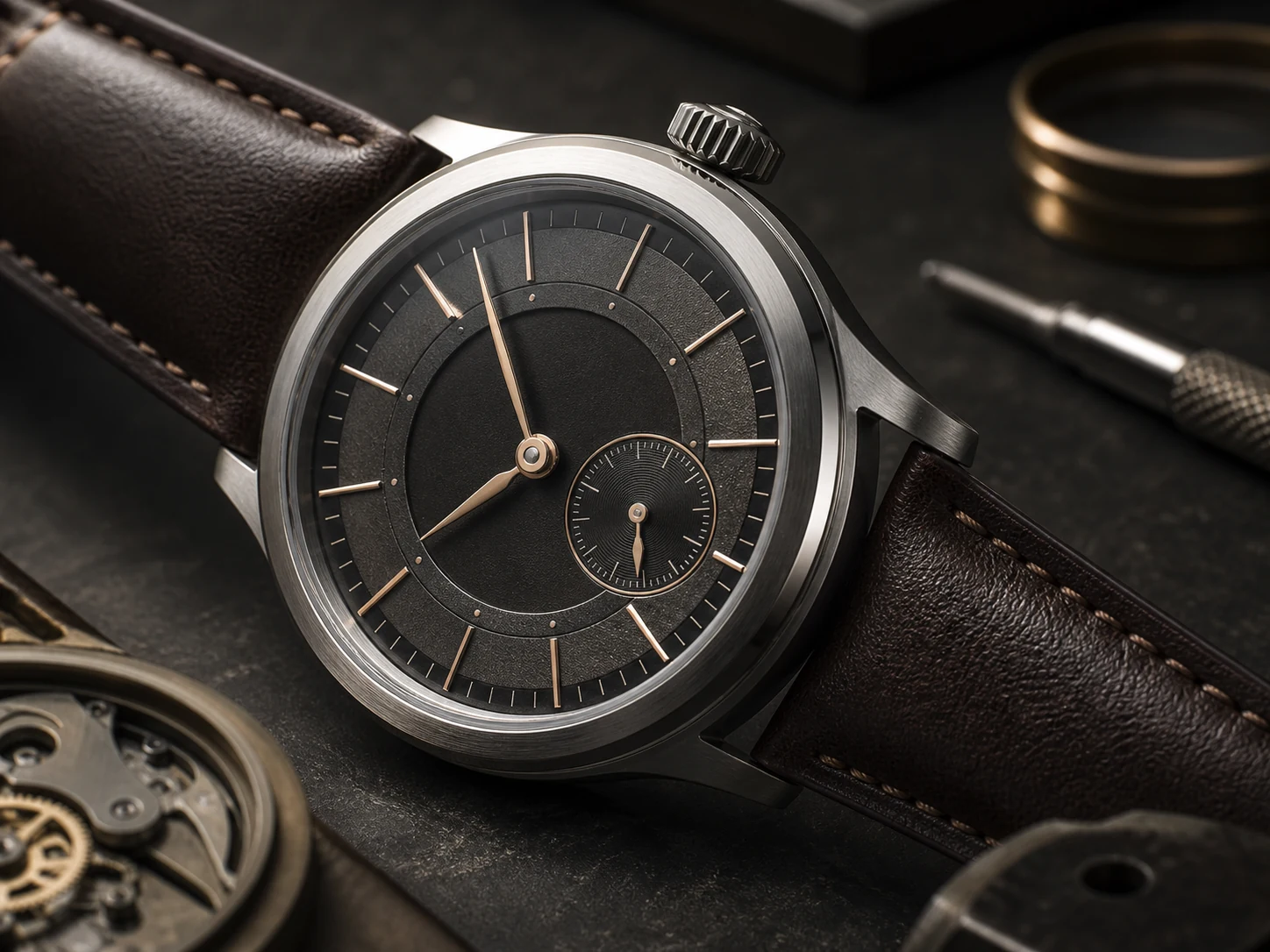
Inspect leather grain and knurled metal
Run the Image Upscaler on product photography when leather, metal, engraved marks, or surface wear must remain convincing. Inspect the camera wrap and knurled controls. A reliable Image Upscaler should keep repeated texture orderly without false seams, warped hardware, or edge halos.
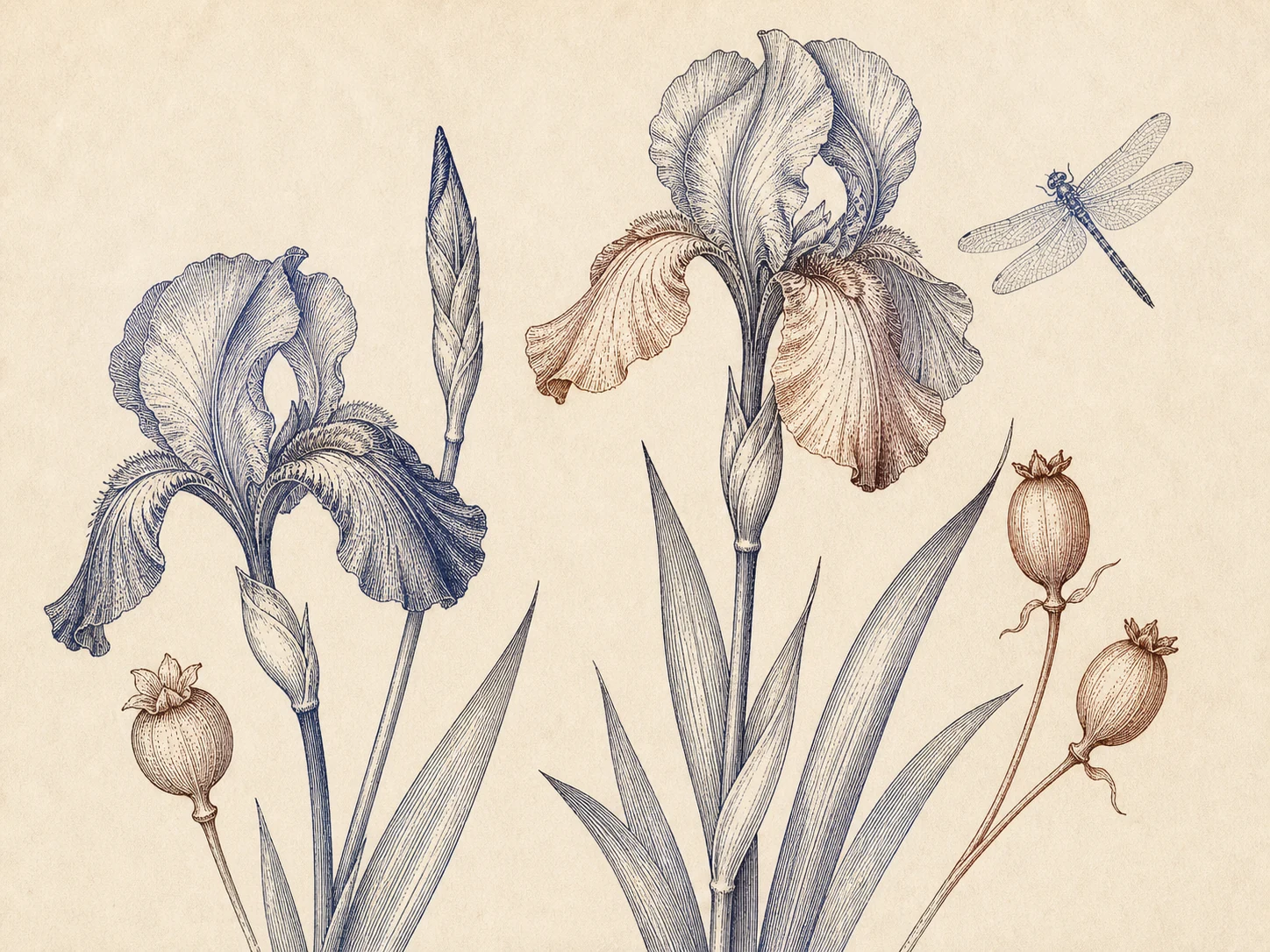
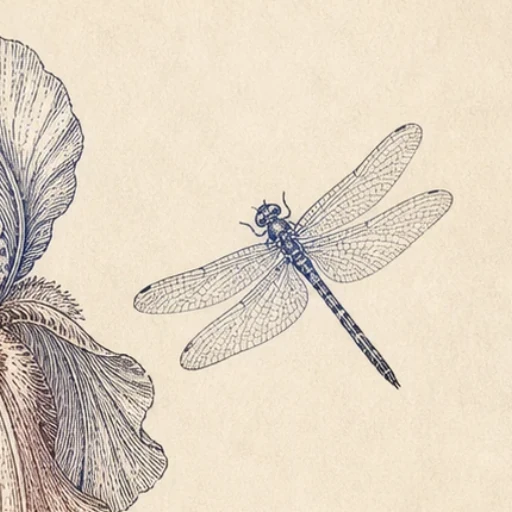 4× detail
Inspect cross-hatching and wing veins
Use the Image Upscaler on artwork when thin contours, cross-hatching, and paper texture need a larger export. Inspect the iris petals and dragonfly wings. A good Image Upscaler keeps line weight and spacing consistent without merging strokes, breaking curves, adding random hatching, or erasing the original medium.
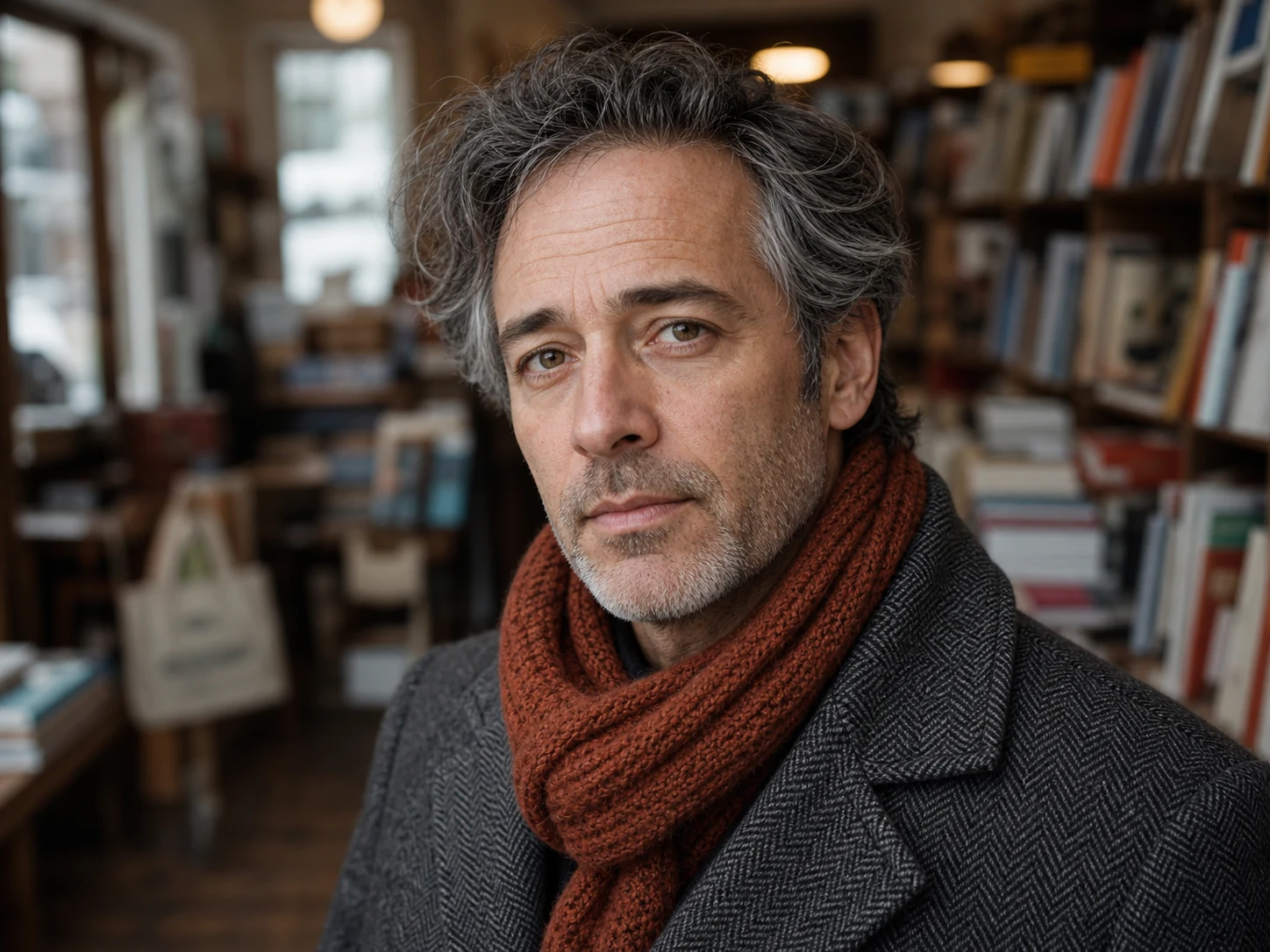
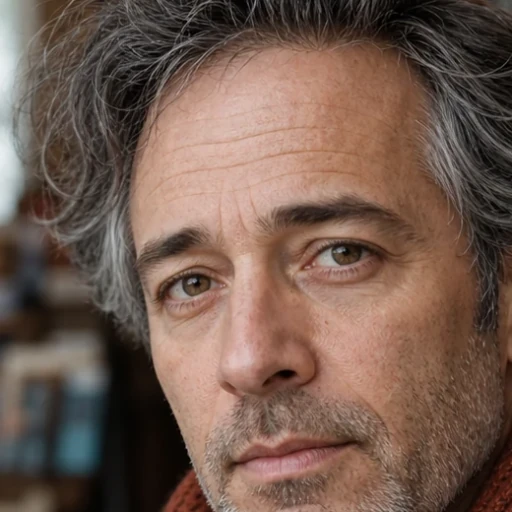 2× detail
Inspect skin, hair, wool, and knit
Choose the Image Upscaler for a portrait after identifying the features that must stay natural. Review eyes, hair, skin, and fabric weave. The Image Upscaler estimates detail, so compare identity with the source and reject glassy eyes, plastic skin, repeated hair, asymmetry, or misdirected fabric texture.
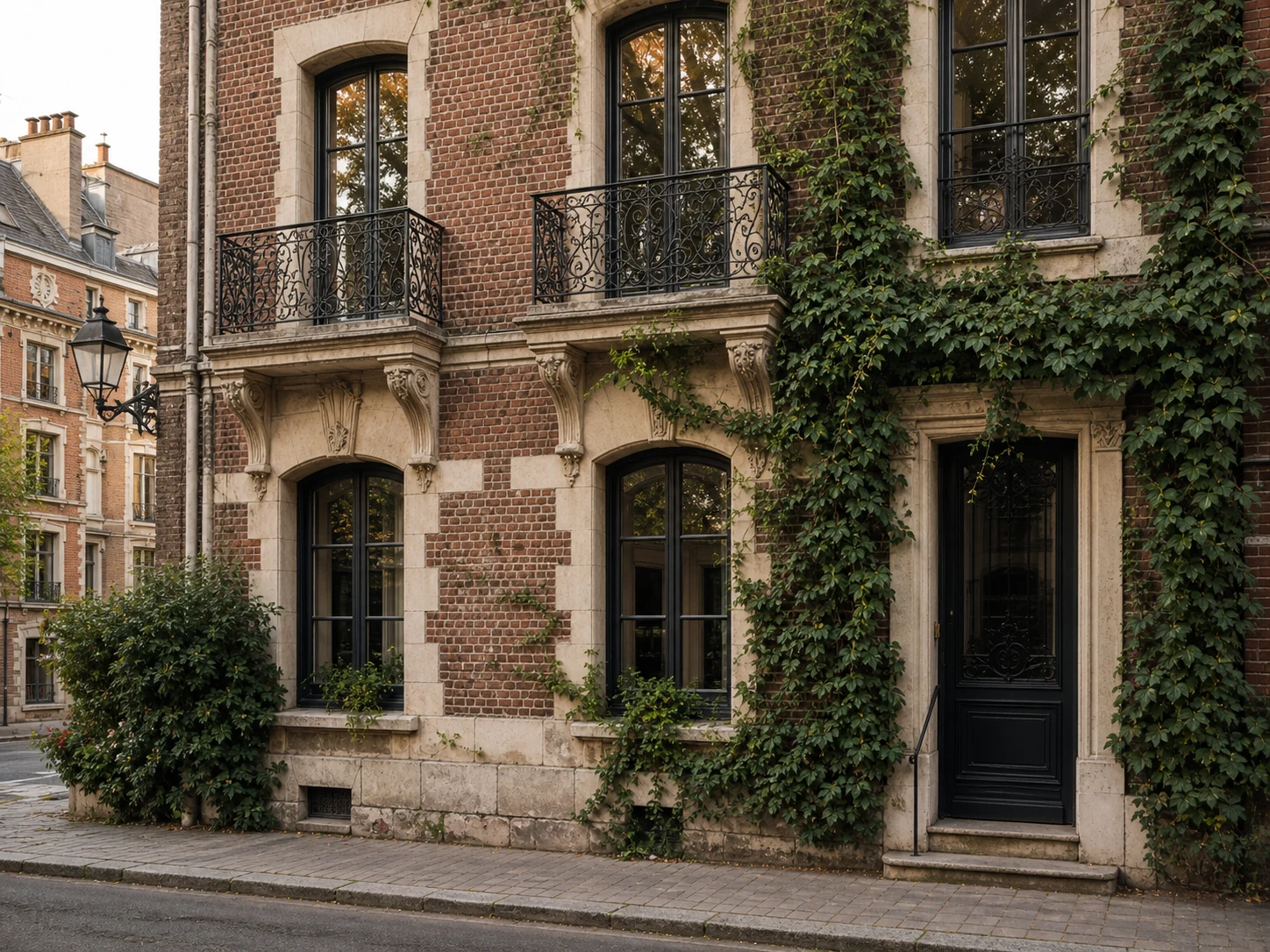
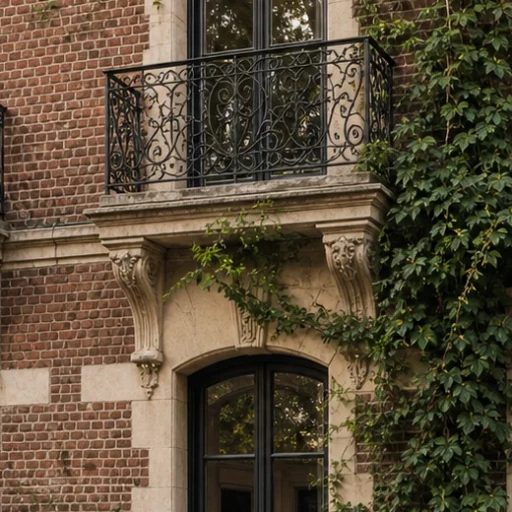 4× detail
Inspect brick, ironwork, stone, and ivy
An Image Upscaler can prepare a property or travel image for a larger presentation, but geometry exposes errors quickly. Check the brick, mortar, ironwork, frames, and ivy. A trustworthy Image Upscaler keeps edges aligned and structures coherent instead of bending rails, duplicating leaves, softening carvings, or inventing reflections.
Image Upscaler workflow checklist
The Image Upscaler works best after composition and editing are finished. Before starting the Image Upscaler, confirm that crop, subject placement, lighting, and content are correct. The Image Upscaler increases resolution; it does not expand the canvas, remove a background, restore severe damage, or correct text. Use this Image Upscaler checklist before upscaling.
Choose the Image Upscaler when the composition is correct but its dimensions are too small for a product page, presentation, portfolio, screen, or print test. Start from the clearest original file.
If the subject needs more room around it, use Expand Image first. The Image Upscaler preserves roughly the same field of view and cannot intentionally create a wider or taller composition.
A thumbnail can hide full-resolution artifacts. Review the Image Upscaler output at 100%, then inspect faces, text, logos, fine lines, repeating patterns, and hard edges.
Compare both files rather than relying on memory. The Image Upscaler result may look sharper while changing a meaningful detail, so verify identity, geometry, color, and important marks.
Choose the right image operation
These tools can all produce a different-looking file, but they solve different problems. Choose the operation that matches what is actually missing from the source.
Increases output dimensions and estimates detail while keeping roughly the same composition.
Changes pixel dimensions with conventional interpolation and does not generate meaningful new scene detail.
Targets blur, noise, color, damage, or facial detail; those repairs are not guaranteed by a resolution increase alone.
Generates new content beyond the existing borders to create a wider or taller composition.
An AI image upscaler increases an image's pixel dimensions and estimates additional visual detail for the larger output. Unlike basic resizing, it uses a learned model rather than interpolation alone.
Upload one JPG, PNG, or WebP image, select a 2× or 4× upscale factor, sign in, and start the task. Review the result at full size before downloading it.
Upscaling can produce a larger and visually clearer result than basic resizing, but no tool can recover exact detail that is absent from the source. Results depend on the source image and model, so inspect important areas before use.
Yes. The Image Upscaler workspace on this page offers 2× and 4× scale factors through the selected Topaz image-upscale model.
The current Image Upscaler accepts one JPG, PNG, or WebP source image up to 10 MB.
No. Conventional resizing interpolates existing pixels. AI upscaling also estimates new detail for the larger output, although that generated detail should still be reviewed.
Yes. You can upload a source and choose settings before signing in. The workspace shows the current credit cost and your available balance before the task starts.
Upload one source, select 2× or 4×, and generate a higher-resolution result in the Image Upscaler workspace.
Upscale image now