The little details. The next big idea.

First and Last Frame Extractor

Find where your clip begins and ends. Open a video, preview its first and last frames, and download the two stills as separate PNG images.

Your frame studio FREE TOOL

A video in.
Two moments out.

Drop your clip to capture where it starts and where it ends.

Drop a video here, or choose a file

Up to 250 MB · browser-supported video codecs · up to 16.7 megapixels per frame

Stays on your device / No sign-up

The extractor reads your video in this browser. No video upload or account is needed to extract frames.

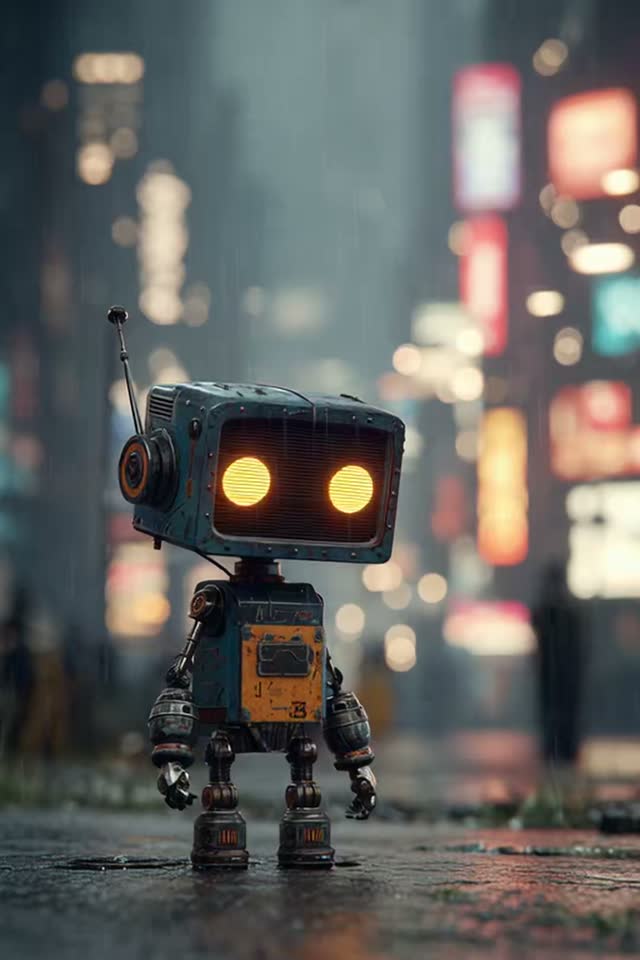
A small retro robot in a neon city at night
SCENE INSPIRATION

Keep the beginning.
Find what’s next.

01 / OPENING02 / ENDING

Upload a video to see your own frames here.

Extraction runs in your browser. No account or generation credits are needed to extract and download frames.

From input to output

Three steps. More possibilities.

  1. 01

    Choose your video

    Open a clip saved on your device. MP4, WebM and MOV are common containers, but the video codec must also be supported by your browser. Keep the tab open while the clip is read.

  2. 02

    Inspect both endpoints

    Compare the opening image with the final decodable image. Check the subject, framing and any fade before deciding which still you want to use. A black final frame may be part of the original video.

  3. 03

    Download or continue creating

    Download either endpoint as a PNG. To plan another clip, send a selected still to Image to Video AI or send both images to the first-and-last-frame generator. Review the next tool before generating.

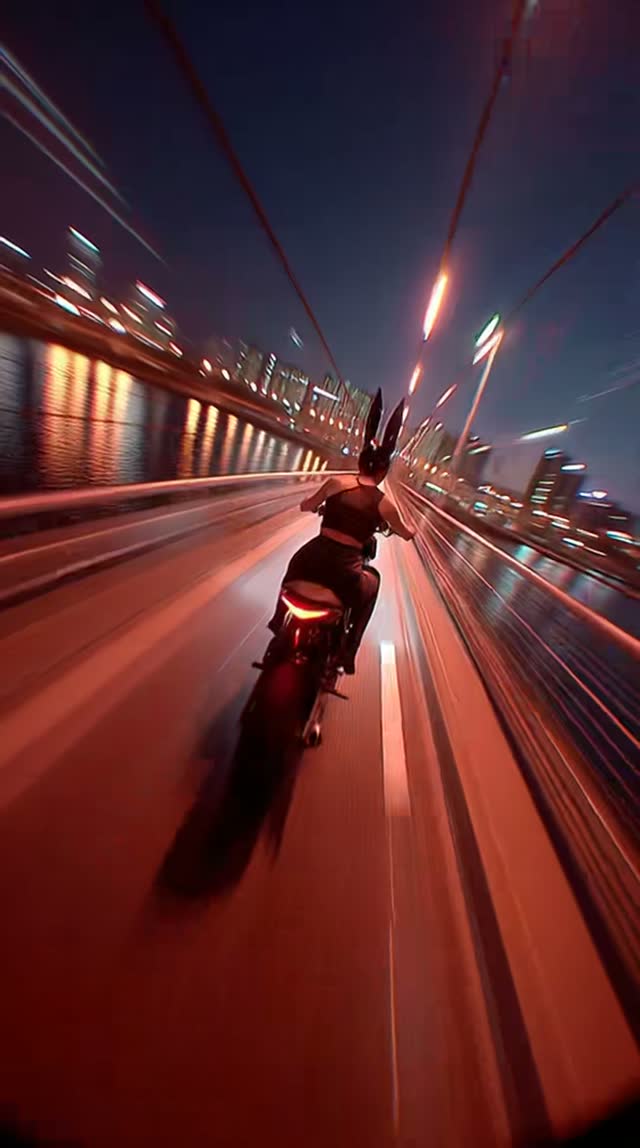
A cinematic motorcycle ride across a city bridge at night

Made for your next edit

A moment worth
building on.

01

Two useful points in your edit

A first frame extractor gives you the opening composition without scrubbing through a player. Use it to check how a clip starts, compare consecutive takes, or prepare an opening reference for another shot. It extracts an existing image; it does not create a new composition.

A last frame extractor gives you a visual reference for what comes next. The subject position, lighting and camera angle can guide a new image-to-video shot. A generated continuation is a separate clip, so review the join in your editor instead of assuming a seamless match.

02

An image from the video you actually supplied

PNG export preserves the decoded frame dimensions reported by your browser. It does not upscale, sharpen, remove a watermark or recreate detail. Compression, motion blur, fades and overlays in the source can remain visible in the extracted image.

Check the previews before downloading. A wide video produces a wide still; a portrait video produces a portrait still as decoded by your browser. The tool does not deliberately crop your composition to fit a square preview.

03

When the last frame is black or cannot be read

A black frame is not automatically an extraction error. Some clips finish with a fade, black leader or blank closing frame. This tool keeps that endpoint instead of silently substituting an earlier, more attractive picture. Trim the source video if you need a different endpoint.

Containers and browsers do not always agree about the exact end of a stream. If the browser cannot decode the ending, the tool reports a partial result rather than calling an earlier frame the last one. You can still download a successfully extracted first frame. A corrupt or unsupported file may need to be exported again using a codec your browser can play.

04

Local extraction, an optional next step

The extractor reads the selected file on your device using the browser. Selecting a file or downloading its PNG frames does not submit the video to an AI model. Closing or replacing the file clears the current extraction previews.

If you choose to continue creating, the selected PNG images are saved as a local draft and opened in the next tool. They are uploaded only when you actively submit a generation request. Video generation is a separate service that requires an account and available credits; handing off a frame does not start it automatically.

Before you begin

Your questions, answered

Can I extract the first and last frames for free?

Yes. This browser-based extraction and PNG download do not require an account or generation credits. Optional AI video generation is a separate, credit-based step.

Which video formats work?

Choose a video file your current browser can decode. MP4, WebM and MOV may work depending on the codec and device. A filename extension alone cannot guarantee compatibility. If a clip plays poorly or fails to load, export a browser-compatible copy and try again.

Can I download just the last frame?

Yes. The first frame and last frame have separate PNG download controls. You do not need to download or use both images.

Does PNG export improve the video quality?

No. The PNG contains the decoded source frame at the dimensions reported by the browser. Exporting avoids adding another JPEG compression step, but it cannot restore detail that is missing from the video.

Can I extract frames from a YouTube link or another URL?

This version accepts local video files. It does not import YouTube links, remote video URLs or protected streams. Use a video file you are entitled to access on your device.

Is this a frame-by-frame video editor?

No. It focuses on the opening and ending frames. To choose a different point, trim a copy of your video in an editor first, then extract its new endpoints.

Why did only one image appear?

Your browser may be able to read the opening but not the final part of a file. The tool keeps any valid result and labels the missing endpoint. Try a different browser or re-export the clip if you need both frames.

Will continuing to the generator spend credits immediately?

No. Continuing opens a draft with your selected images. Choose a model, inspect the inputs and credit estimate, and press the generation button when you are ready.