Two images. A new possibility.

First and Last Frame AI Video Generator

Give your next clip a beginning and an ending. Upload two images, describe the movement between them, and choose a model that supports both visual endpoints.

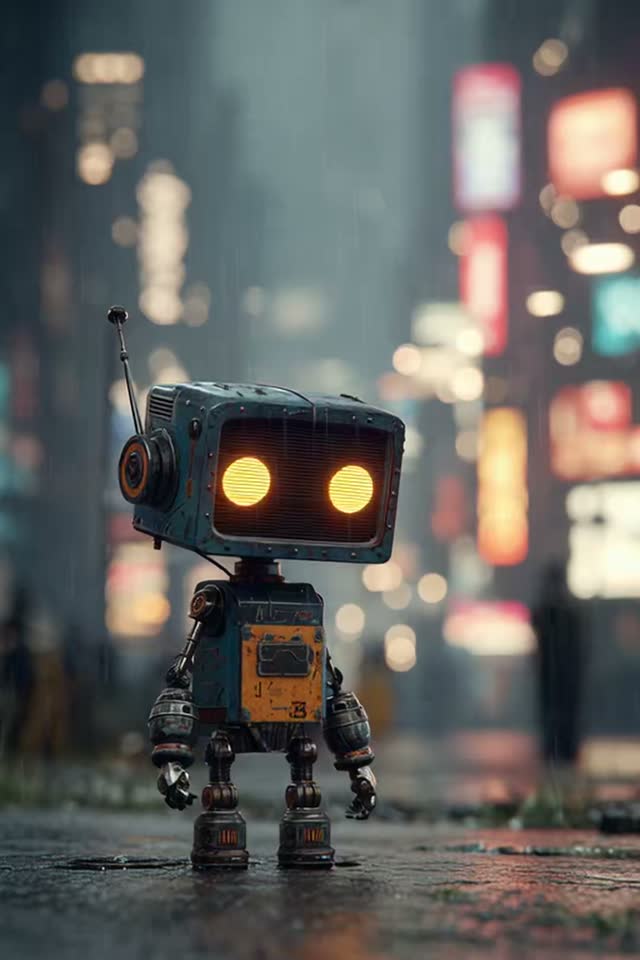
A small robot in a rain-soaked neon city, a scene to inspire your storyboard
STORYBOARD INSPIRATION

You set the beginning.
And where it goes.

01 / First image02 / Last image
Add your two frames
Loading available Kie models...

Both images are required. Sign in and review the credit estimate before generating; duration and available settings depend on the selected model.

From input to output

Three steps. More possibilities.

  1. 01

    Set the first and last frames

    Add your opening image to First frame and your closing image to Last frame. Keep the subject, framing and aspect ratio reasonably consistent when you want a continuous shot. The two inputs have distinct roles.

  2. 02

    Describe the transition

    Tell the model what moves between the images: the camera, the subject, the lighting or the scene. Start with one clear motion and avoid instructions that contradict the visible endpoints.

  3. 03

    Choose, generate and review

    Pick a compatible model and review its settings and estimated credits. Generate the clip, then inspect the motion and both endpoints before downloading or continuing your edit.

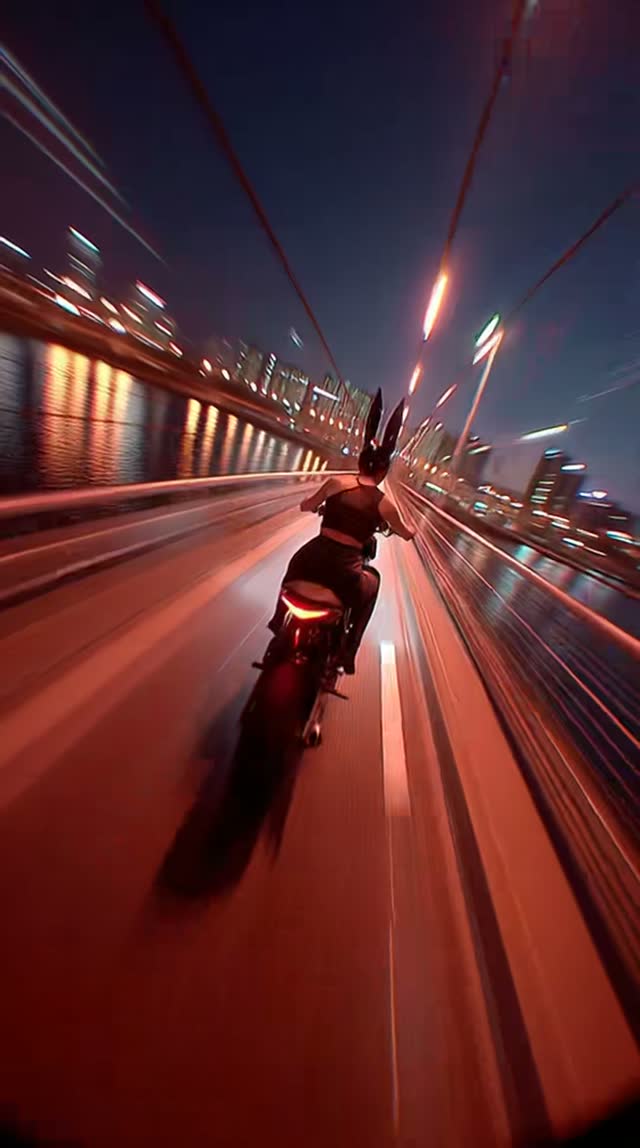
A cinematic motorcycle ride across a city bridge at night

Made for your next edit

A moment worth
building on.

01

A beginning and an ending, with room for motion

Ordinary image-to-video generation starts from one source image. First-and-last-frame generation adds a second reference for how the shot should finish. That makes it useful when a final composition matters, such as a product settling into position or a camera arriving at a planned view.

The two images guide the model; they are not a promise of pixel-identical video frames. The model can reinterpret texture, small lettering, hands or other fine details. Review the result, especially when exact product marks or a precise match cut matter.

02

Prepare images that can belong to the same shot

For a restrained transition, use a similar subject scale, camera height and lighting in both images. Give the model enough space around a moving subject. Large jumps in pose, perspective or location ask it to invent more of the intervening action.

Two similar images can support subtle camera movement; two very different images can encourage a visible transformation. Neither guarantees a smooth result. If you need strict geometric interpolation rather than generated motion, this creative video workflow may not match that requirement.

03

Write the motion between the endpoints

Describe the journey rather than repeating a long list of objects already visible in the pictures. For a product shot, a starting prompt could be: “The camera slowly arcs to the right as the box turns toward the final pose. Keep the background lighting steady.” This is a writing example, not a claim about a tested output.

For a landscape, you might ask for a slow forward camera move with gentle cloud motion. Avoid demanding several cuts, a full orbit and a close-up in one short transition. Keep the first attempt simple, inspect where it differs from your intention, and change one instruction at a time.

04

Model settings and credits stay visible

This page offers models that support the two-frame workflow. Available durations, image formats, resolutions and other controls can vary. Changing the model can change both the options and the credit estimate, so review the controls after switching.

Generating a clip requires sign-in and sufficient credits. The model selector is not a guarantee of identical quality across models. Upload both inputs and check their order before submitting. If a request cannot be accepted, use the error message to correct the inputs instead of expecting another model to be substituted silently.

Before you begin

Your questions, answered

Do I need both a first frame and a last frame?

Yes. This page requires one image for each endpoint. If you only have one image and want the model to decide what comes next, use Image to Video AI instead.

Will the generated clip exactly match the last image?

The last image guides the closing composition, but exact pixel matching is not guaranteed. Small details, text and geometry can change. Preview the generated result before using it in a finished edit.

Can the first and last frames be completely different?

You can provide different images, but a large visual gap makes the transition more demanding. Similar subjects, lighting and framing usually make the intended relationship easier to describe. Unexpected morphing or scene changes are possible.

How long can the generated video be?

Duration depends on the compatible model you select. Use the available duration controls and review the credit estimate for that configuration. This page does not promise one duration or resolution across all models.

Can I use frames from an existing video?

Yes. Extract the two endpoints with the First and Last Frame Extractor, then choose to send both PNG images here. The original clip is not used as a motion reference in this workflow.

Is start-and-end-frame video the same as extending a clip?

No. It generates a new clip guided by two still images. Video extension continues a compatible previous generation through a separate workflow. A new two-frame clip is not automatically joined to your source video.

Will my images survive signing in?

When sign-in is needed after you request generation, the tool saves your images and settings as a local browser draft. Return in the same browser to restore it. Local drafts can be unavailable after browser storage is cleared or their retention period expires.

Are these generated clips free?

Generation uses credits. The estimate is shown for your chosen model and options before submission. Opening a draft or changing settings does not generate a video on its own.